
Most Shopify redesigns start at the product page and work outwards. That is the wrong end of the store. The navigation is the single most-used interface component you own, it is rendered on every template, and it is the mechanism that decides whether a visitor ever reaches the collection that would have converted them. Yet in almost every audit we run at Insiteful, the mega menu is the component nobody has touched since launch.
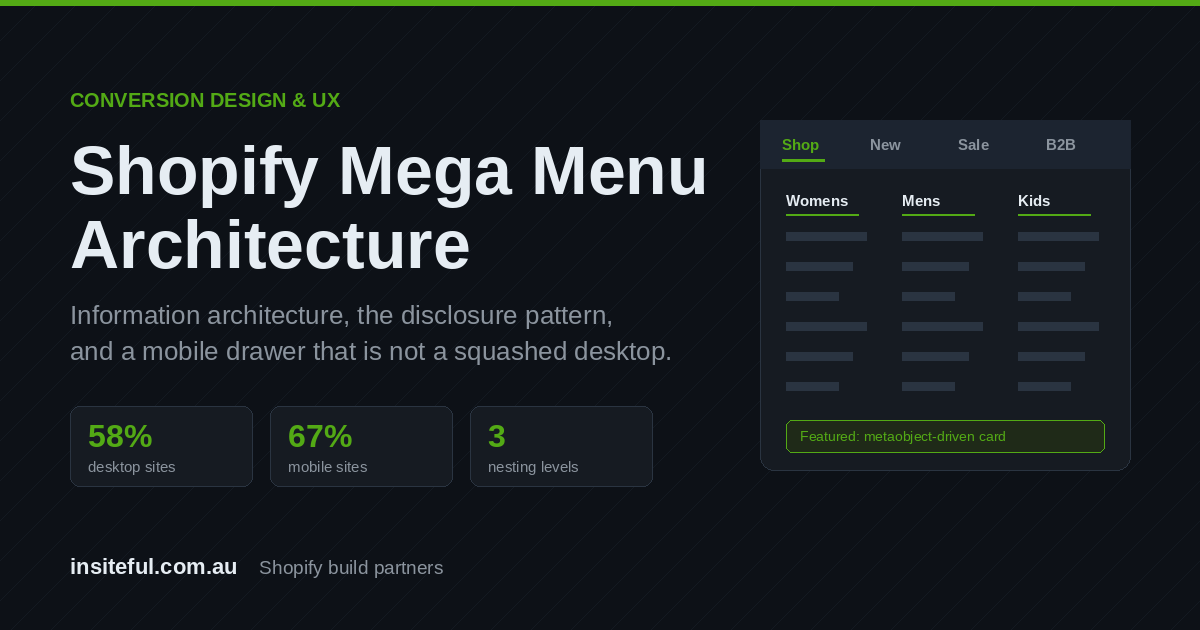
The benchmark data backs that up. Baymard Institute’s 2025 homepage and category navigation benchmark, built from more than 16,000 manually scored UX elements, found that 58% of desktop sites and 67% of mobile sites have mediocre or poor navigation performance. That is not a design taste problem. That is two thirds of stores actively losing people between the header and the collection page.
This article is the working method we use to rebuild Shopify navigation: how to audit the information architecture before writing any Liquid, how Shopify’s linklist system actually constrains you, the mega menu layout rules that survive real scanning behaviour, why mobile needs a different architecture rather than a squashed version of desktop, and how to build the whole thing as an accessible disclosure pattern that does not cost you an interaction-latency penalty.
Navigation is a Catalogue Problem Before It Is a Design Problem
The most common failure we see is a mega menu that faithfully mirrors an internal org chart rather than the way customers describe what they want. A supplements brand groups by “Powders / Capsules / Ready to Drink” because that is how the warehouse is organised. Customers are shopping for “Protein / Recovery / Sleep / Gut”. The menu is internally consistent and commercially useless.
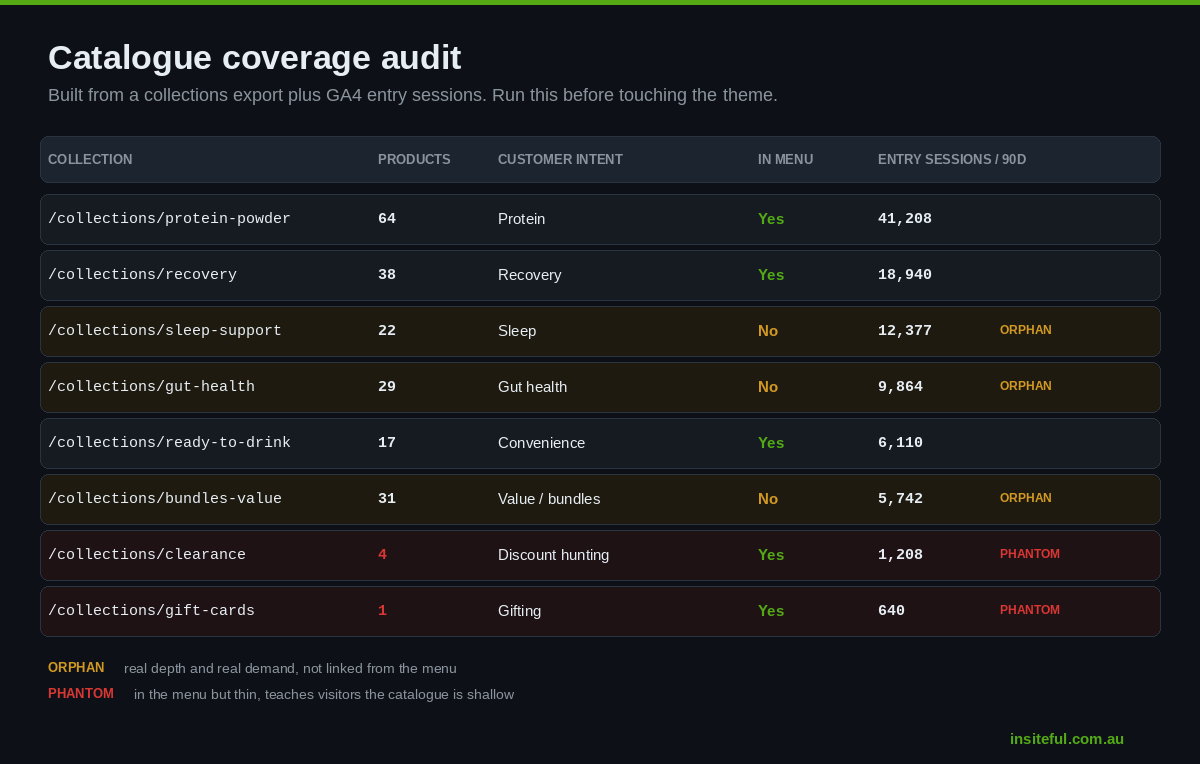
Before you open the theme editor, get the catalogue on paper. Export your collections and product types from the Shopify Admin and build a coverage table. The point is to see, in one view, which shopping intents have a real landing page behind them and which do not.
# Export collections via Admin API (GraphQL), then count products per collection
query {
  collections(first: 250, sortKey: TITLE) {
    edges {
      node {
        handle
        title
        productsCount { count }
        ruleSet { rules { column relation condition } }
      }
    }
  }
}
Run that, drop it into a sheet, and add three columns by hand: customer intent this page serves, is it in the menu, and sessions last 90 days. Two patterns fall out almost immediately. First, orphan collections: pages with real product depth and real search demand that are not linked from the navigation at all, usually because they were created for a campaign and never promoted into the IA. Second, phantom entries: menu links pointing at collections with four products, which teach visitors that your catalogue is thin.
Pull the sessions figure from GA4 rather than guessing. This is the query pattern we use to rank collection entry points, which is what tells you the order your menu should be in.
-- GA4 BigQuery export: collection page entry sessions, last 90 days
SELECT
  REGEXP_EXTRACT(page_location, r'/collections/([a-z0-9-]+)') AS collection_handle,
  COUNT(DISTINCT CONCAT(user_pseudo_id, session_id)) AS entry_sessions
FROM (
  SELECT
    user_pseudo_id,
    (SELECT value.int_value FROM UNNEST(event_params) WHERE key = 'ga_session_id') AS session_id,
    (SELECT value.string_value FROM UNNEST(event_params) WHERE key = 'page_location') AS page_location,
    (SELECT value.string_value FROM UNNEST(event_params) WHERE key = 'entrances') AS entrances
  FROM `project.analytics_XXXXXX.events_*`
  WHERE _TABLE_SUFFIX BETWEEN '20260519' AND '20260817'
    AND event_name = 'page_view'
)
WHERE page_location LIKE '%/collections/%'
GROUP BY collection_handle
ORDER BY entry_sessions DESC
LIMIT 50
Now you have an evidence-based ordering. The brands doing well out of Australia’s online retail market, which Australia Post’s 2026 eCommerce Report put at $82.6 billion AUD in 2025, up 14% year on year and now 24% of all retail spend, are not guessing at menu order. They are reading it off entry-point data and repeat purchase behaviour.
How Shopify’s Navigation Actually Works, and Why Three Levels Is Enough
Shopify’s navigation is built from linklists, which are the menus you create under Online Store then Navigation. Each menu has a handle, each link can have children, and the platform supports nesting three levels deep, with a ceiling of 10,000 items per menu and 1,000 menus per store. Those limits are effectively infinite for real catalogues. The three-level constraint is the one people complain about, and it is almost always protecting them from themselves.
Three levels maps cleanly onto a mega menu: level one is the header item, level two is a column heading, level three is a link inside that column. If you find yourself needing a fourth level, the honest read is that your level-two grouping is wrong, or you are trying to express filtering inside navigation. Filtering belongs on the collection page, which is a separate design problem we covered in our piece on Shopify faceted search and filter UX.
Here is the linklist traversal in Liquid. Note that link.links is populated automatically, and link.child_active and link.child_current give you the state you need for highlighting without any JavaScript.
{%- assign menu = linklists[section.settings.menu] -%}
<nav class="header-nav" aria-label="Main">
  <ul class="header-nav__list">
    {%- for link in menu.links -%}
      {%- if link.links.size > 0 -%}
        <li class="header-nav__item" data-has-panel>
          <button
            type="button"
            class="header-nav__trigger"
            aria-expanded="false"
            aria-controls="panel-{{ forloop.index }}"
            data-nav-trigger>
            {{ link.title }}
          </button>

          <div id="panel-{{ forloop.index }}" class="mega" hidden data-nav-panel>
            <div class="mega__grid">
              {%- for child in link.links -%}
                <div class="mega__col">
                  <a href="{{ child.url }}" class="mega__heading">{{ child.title }}</a>
                  {%- if child.links.size > 0 -%}
                    <ul class="mega__links">
                      {%- for grandchild in child.links limit: 8 -%}
                        <li><a href="{{ grandchild.url }}">{{ grandchild.title }}</a></li>
                      {%- endfor -%}
                    </ul>
                  {%- endif -%}
                </div>
              {%- endfor -%}
            </div>
          </div>
        </li>
      {%- else -%}
        <li class="header-nav__item">
          <a href="{{ link.url }}" {% if link.active %}aria-current="page"{% endif %}>{{ link.title }}</a>
        </li>
      {%- endif -%}
    {%- endfor -%}
  </ul>
</nav>
Two details in that snippet matter more than they look. The limit: 8 on grandchildren is a deliberate guardrail, and we will come back to why. And the trigger is a real button element, not a link with a click handler bolted on, which is what makes the accessibility work later straightforward instead of retrofitted.
Mega Menu Layout Rules That Hold Up Under Real Scanning
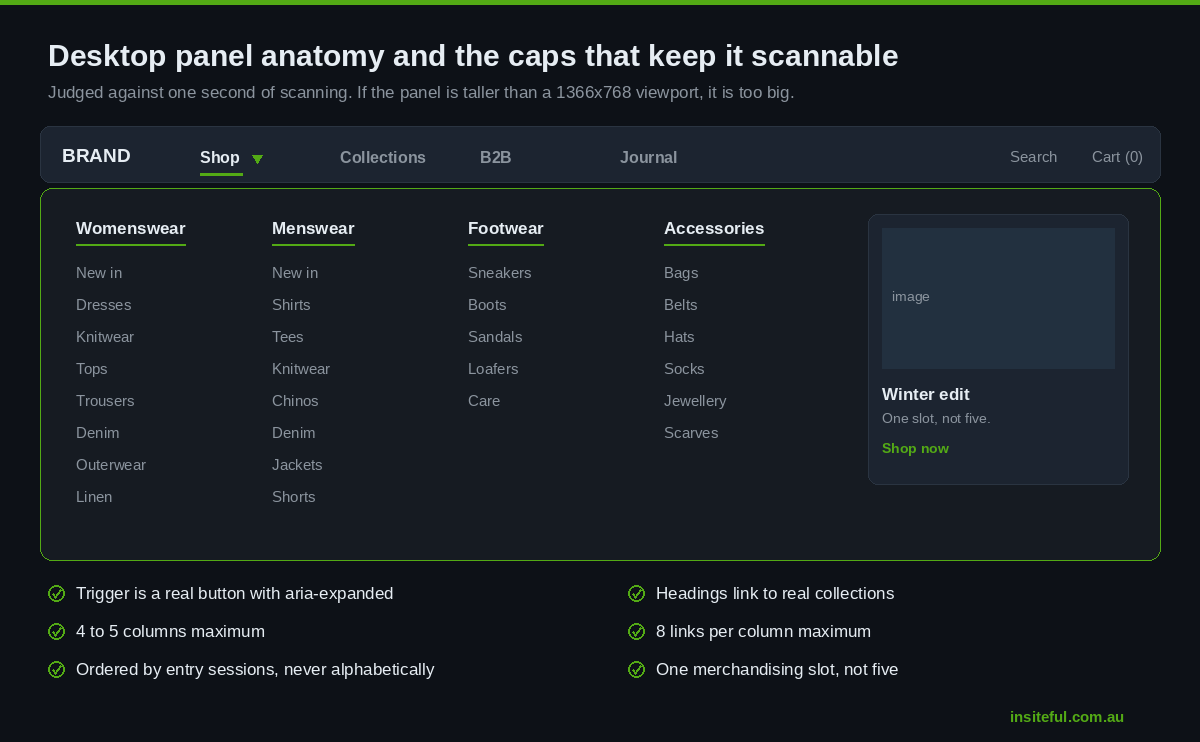
A mega menu is a scanning surface, not a reading surface. Someone opens it, sweeps it in roughly a second, and either finds a plausible path or bails back to search. Every layout decision should be judged against that second.
Cap columns at four to five, and links at eight per column. Beyond that the panel stops being scannable and becomes a wall. If a category genuinely needs 30 links, that is a signal it deserves its own landing page with proper on-page navigation, not a taller panel. The practical rule we apply on builds: if the panel is taller than the viewport on a 1366 by 768 laptop, it is too big.
Make column headings clickable links, not labels. This is the single most common defect we find. A visitor reads “Outerwear”, wants everything in outerwear, clicks the heading, and nothing happens. Level-two items should always point at a real collection.
Order by demand, not alphabet. Alphabetical ordering is an admission that nobody looked at the data. Use the entry-session ranking from the query above.
Reserve one slot for merchandising, not five. A single featured card with a real image works. Four promo tiles turn the menu into a homepage and push the actual links below the fold of the panel.
Do not put your entire brand story in the menu. About, Sustainability, Stockists and Careers belong in the footer or behind a single secondary item. They compete for the same scanning second as the categories that make money.
The typography and spacing inside the panel should come from the same token set as the rest of the store rather than being hand-tuned in the section CSS. If you have not formalised that layer yet, our write-up on design tokens on Shopify covers how we structure it, and the icon system piece covers the chevrons and affordances specifically.
Mobile Navigation Is a Different Architecture, Not a Smaller One
This is where most Shopify stores lose the most money, and it is almost always because the mobile menu was treated as a responsive afterthought. Baymard’s research found that 33% of mobile sites fail to make product categories the top-level items in the mobile main navigation, burying them under account links, help pages and brand content. In the same body of work, 42% of mobile homepages risk setting the wrong expectations about what the site actually sells.
The commercial stakes in this market are not subtle. Mobile transactions in Australia grew 28.8% in 2025, and mobile commerce revenue is tracking to exceed $35 billion AUD by 2026, close to half of all Australian ecommerce revenue. A mobile drawer that hides categories two taps deep is a direct tax on the majority of your traffic.
Four rules we hold to on every build:
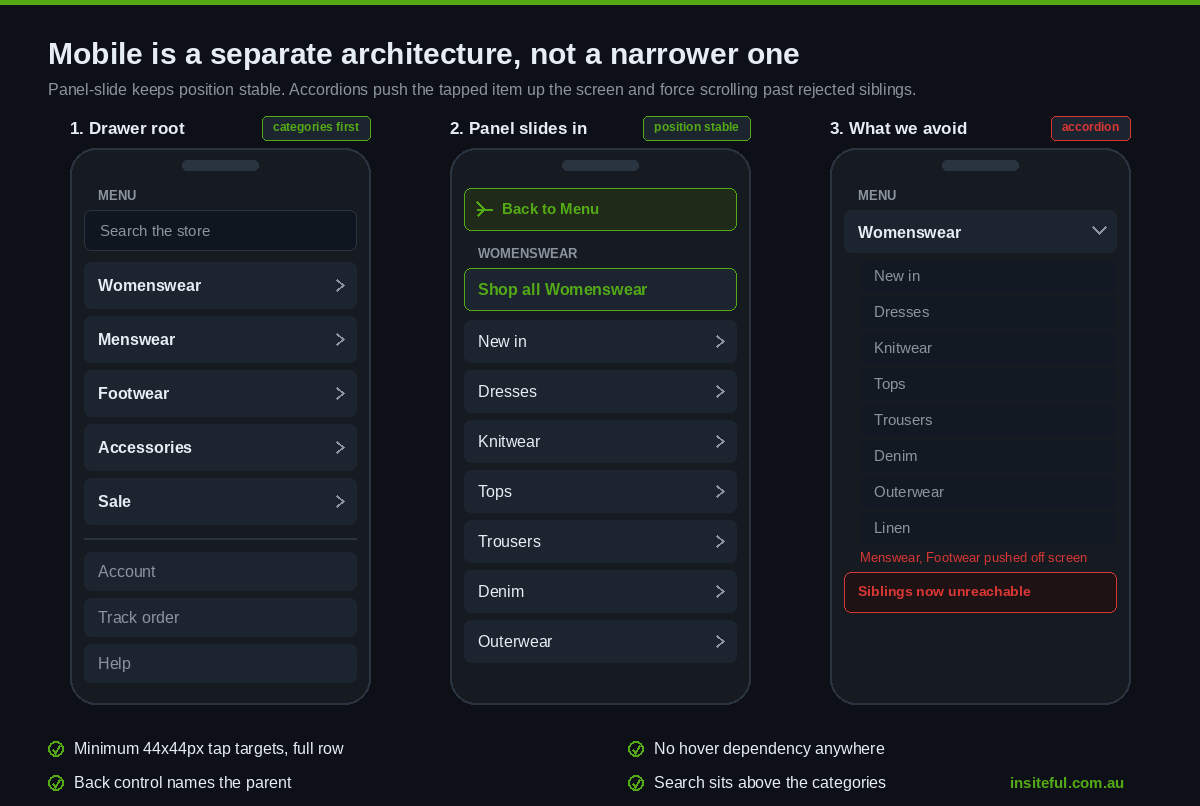
Categories first, everything else after a divider. The drawer opens onto shopping paths. Account, order tracking and support sit below a visual break, reachable but not competing.
Use a panel-slide pattern, not accordions, for deep catalogues. Accordions push the item you tapped up the screen and force scrolling through siblings you have already rejected. A sliding panel keeps position stable and gives you a clear back affordance. Label the back control with the parent name, “Back to Womenswear”, not a bare arrow.
Never rely on hover, and size targets for thumbs. Minimum 44 by 44 CSS pixels for every tappable row, with the full row as the target rather than just the text.
Put search at the top of the drawer. When the taxonomy fails someone, search is the fallback, and it should not require closing the menu first.
That last point connects to a finding worth acting on: Baymard reports that 94% of mobile ecommerce sites do not support searching within the current category. On a large catalogue this is a genuine differentiator. If someone is deep in Womenswear and searches “linen”, scoping that query to the collection they are standing in is a small implementation and a large relevance improvement.
<!-- Scoped search: carry the collection into the query -->
{%- if collection -%}
  <form action="{{ routes.search_url }}" method="get" role="search">
    <label for="scoped-q">Search in {{ collection.title }}</label>
    <input type="search" id="scoped-q" name="q" placeholder="Search {{ collection.title }}">
    <input type="hidden" name="filter.p.collection" value="{{ collection.handle }}">
    <input type="hidden" name="type" value="product">
    <button type="submit">Search</button>
  </form>
{%- endif -%}
Broader mobile patterns beyond the menu itself are covered in our piece on mobile Shopify design patterns that convert.
Build It as a Disclosure, Not an ARIA Menu
Here is a mistake we correct on most theme audits. Developers reach for role="menu" and role="menuitem" because the component is called a menu. Those roles are for application menus, the File and Edit style menus in a desktop app, and applying them to site navigation actively breaks screen reader behaviour by overriding the link semantics people rely on.
The correct pattern for a mega menu is a disclosure: a real button with aria-expanded that toggles a panel containing ordinary links. That satisfies WCAG 2.1.1 (Keyboard), keeps link semantics intact, and is dramatically less code than a compliant ARIA menu implementation.
There is a second criterion people miss. WCAG 1.4.13 (Content on Hover or Focus) requires that hover-triggered content be dismissible, hoverable and persistent. In plain terms: Escape must close the panel without moving the pointer, the visitor must be able to move the mouse into the panel without it vanishing, and it must not disappear on a timer. Hover-only mega menus with a tight mouse-leave handler fail all three.
class MegaNav extends HTMLElement {
  connectedCallback() {
    this.triggers = this.querySelectorAll('[data-nav-trigger]');
    this.closeTimer = null;

    this.triggers.forEach((trigger) => {
      const panel = this.querySelector('#' + trigger.getAttribute('aria-controls'));

      trigger.addEventListener('click', () => this.toggle(trigger, panel));

      // Hover opens on pointer devices only. Keyboard and touch use click.
      if (window.matchMedia('(hover: hover) and (pointer: fine)').matches) {
        const item = trigger.closest('[data-has-panel]');
        item.addEventListener('mouseenter', () => {
          clearTimeout(this.closeTimer);
          this.open(trigger, panel);
        });
        // Grace period keeps the panel "hoverable" per WCAG 1.4.13
        item.addEventListener('mouseleave', () => {
          this.closeTimer = setTimeout(() => this.close(trigger, panel), 220);
        });
      }
    });

    // Dismissible without moving the pointer
    this.addEventListener('keydown', (event) => {
      if (event.key !== 'Escape') return;
      const openTrigger = this.querySelector('[aria-expanded="true"]');
      if (!openTrigger) return;
      this.close(openTrigger, this.querySelector('#' + openTrigger.getAttribute('aria-controls')));
      openTrigger.focus();
    });

    document.addEventListener('click', (event) => {
      if (this.contains(event.target)) return;
      this.closeAll();
    });
  }

  open(trigger, panel) {
    this.closeAll(trigger);
    trigger.setAttribute('aria-expanded', 'true');
    panel.hidden = false;
  }

  close(trigger, panel) {
    trigger.setAttribute('aria-expanded', 'false');
    panel.hidden = true;
  }

  closeAll(except) {
    this.triggers.forEach((trigger) => {
      if (trigger === except) return;
      const panel = this.querySelector('#' + trigger.getAttribute('aria-controls'));
      this.close(trigger, panel);
    });
  }
}

customElements.define('mega-nav', MegaNav);
Note what is absent: no focus trap. A navigation disclosure should not trap focus. Tab moves through the panel links and then out to the next header item, which is exactly what a keyboard user expects. Trapping focus here is a common over-correction that makes the header harder to escape than it was before.
Test it the way an auditor will: keyboard only, no mouse. Tab to each header item, press Enter or Space to open, Tab through the links, press Escape and confirm focus returns to the trigger. Then run it with VoiceOver or NVDA and confirm the expanded state is announced. If you want the wider checklist we work through, our Shopify accessibility and WCAG fixes article covers the full theme-level audit.
Content-Manage the Promo Slots with Metaobjects
The reason most stores end up installing a mega menu app is not the structure, it is the merchandising. The marketing team wants to swap the featured card in the Womenswear panel without a developer, so an app gets installed, and it injects its own JavaScript bundle and its own DOM into the header on every page.
You do not need the app. Shopify’s theme editor now supports metaobject and metaobject_list settings, and metaobject fields can be selected as dynamic sources in any relevant section, which means the promo slot becomes a native, merchant-editable resource.
Define a metaobject for the navigation feature card:
# Metaobject definition: nav_feature
# Admin > Settings > Custom data > Metaobjects > Add definition

Type: nav_feature
Fields:
  - heading            single_line_text_field    required
  - body               single_line_text_field
  - image              file_reference            (image only)
  - link               url                       required
  - link_label         single_line_text_field
  - parent_menu_item   single_line_text_field    (matches the level-1 link title)
Then reference it from the section schema so each header item can be paired with a feature card in the theme editor, with no code change when the campaign rotates:
{
  "name": "Header",
  "settings": [
    { "type": "link_list", "id": "menu", "label": "Main menu", "default": "main-menu" },
    {
      "type": "metaobject_list",
      "id": "nav_features",
      "label": "Menu feature cards",
      "metaobject_type": "nav_feature",
      "limit": 8
    }
  ]
}
{%- comment -%} Match the feature card to the current level-1 item {%- endcomment -%}
{%- for feature in section.settings.nav_features -%}
  {%- if feature.parent_menu_item.value == link.title -%}
    <a class="mega__feature" href="{{ feature.link.value }}">
      {%- if feature.image.value != blank -%}
        {{ feature.image.value | image_url: width: 480 | image_tag:
             loading: 'lazy', width: 480, height: 360, alt: feature.heading.value }}
      {%- endif -%}
      <span class="mega__feature-heading">{{ feature.heading.value }}</span>
      <span class="mega__feature-body">{{ feature.body.value }}</span>
      <span class="mega__feature-cta">{{ feature.link_label.value | default: 'Shop now' }}</span>
    </a>
    {%- break -%}
  {%- endif -%}
{%- endfor -%}
That is the whole app replaced, with no third-party JavaScript in the header and full control of the markup. We use the same approach for other structured content across builds, which we go into in more depth in our Shopify metaobjects article and in the piece on theme blocks.
Keep the Interaction Cost Low
A mega menu is one of the few components rendered in the initial HTML of every single page, so its cost compounds across the entire store. There are three costs worth measuring.
Markup weight. A five-column panel per header item, across seven header items, with images, can add 40KB to 80KB of HTML to every page. The fix is not to lazy-load the whole nav, because that hurts the first interaction. It is to render the link structure in HTML and defer only the imagery, using native lazy loading and explicit dimensions as in the snippet above.
Interaction latency. Interaction to Next Paint is measured on the first interaction, and for a large share of sessions that first interaction is opening the menu. If your panel toggle triggers a layout recalculation across a large hidden subtree, you will see it in your INP field data. Toggling the hidden attribute on a panel that is already in the DOM is cheap. Building the panel DOM on first open is not. Our INP optimisation write-up covers how we isolate this in the field data rather than in lab tests.
Third-party overhead. Navigation apps are among the worst offenders we see in theme audits, because they load before the header is usable and frequently ship their own copy of a framework. If a nav app is in your stack, measure it directly: record the header render with the app enabled and disabled, and compare the main-thread cost.
For very large catalogues where you genuinely cannot ship every panel in the initial HTML, the Section Rendering API gives you a clean way to fetch a panel on demand without a full framework:
async function loadPanel(handle, panel) {
  if (panel.dataset.loaded === 'true') return;
  const url = '/?section_id=mega-panel&nav_handle=' + encodeURIComponent(handle);
  const response = await fetch(url);
  if (!response.ok) return;
  const markup = await response.text();
  const parsed = new DOMParser().parseFromString(markup, 'text/html');
  panel.innerHTML = parsed.querySelector('[data-panel-inner]').innerHTML;
  panel.dataset.loaded = 'true';
}

// Warm the panel on intent, before the click lands
item.addEventListener('pointerenter', () => loadPanel(handle, panel), { once: true });
Prefetching on pointer intent means the panel is usually ready before the visitor commits. Pair that with speculation rules for the collection pages themselves and the whole path from header to collection feels instant, which we detail in our article on speculation rules on Shopify.
Instrument the Navigation So the Next Change Is Evidence-Based
Most stores cannot answer a basic question: what percentage of sessions use the main navigation at all? Without that number, every menu decision is opinion. Add a single delegated listener and you have the data inside a week.
document.querySelector('mega-nav')?.addEventListener('click', (event) => {
  const link = event.target.closest('a[href]');
  if (!link) return;

  const panel = link.closest('[data-nav-panel]');
  const column = link.closest('.mega__col');

  gtag('event', 'navigation_click', {
    nav_level: link.classList.contains('mega__heading') ? 2 : 3,
    nav_parent: panel?.dataset.navParent || 'top',
    nav_column: column?.querySelector('.mega__heading')?.textContent.trim() || null,
    nav_label: link.textContent.trim(),
    nav_destination: link.getAttribute('href'),
    nav_device: window.matchMedia('(max-width: 749px)').matches ? 'mobile' : 'desktop'
  });
});
Four reports are worth building from that event. Nav usage rate, which is sessions with at least one navigation_click divided by all sessions, split by device. Click distribution by header item, which tells you your ordering is wrong when item five outperforms item two. Level-two versus level-three split, where heavy level-three usage means your column headings are not specific enough. And navigation-assisted conversion rate compared with search-assisted, which is the number that justifies the next round of investment.
One caution on interpretation: a menu with low usage is not automatically a bad menu. On a focused catalogue with strong landing pages, most visitors should never need it. Read the number against your catalogue depth, not against a benchmark.
How We Do It at Insiteful
Navigation is not a standalone project for us, it is a defined stage inside the build. Every Shopify project we run goes through the same sequence, and the IA work happens before a single line of theme code is written.
We start with the catalogue coverage table described at the top of this article, built from the client’s actual collection export and their GA4 entry-point data. That produces a proposed structure as a flat spreadsheet, level one through level three, with the target collection URL for every row and a product count beside it. It is deliberately unglamorous. Reviewing an IA as a spreadsheet rather than as a designed menu keeps the conversation on whether the paths are right instead of on whether the chevron is the right weight.
We then run the structure past the client’s customer service team, not just the marketing team. Support people know the language customers actually use, because they read it in tickets all day. That single conversation has changed the top level of the menu on more builds than any other input.
Desktop and mobile are designed as two separate architectures from the same content model. The desktop mega menu and the mobile sliding drawer share the same linklist and the same metaobject feature cards, but the ordering and the depth are allowed to differ, because the constraints genuinely differ.
The build itself is native Shopify. A disclosure-pattern web component, standard Liquid linklist traversal, metaobject-driven promo slots, no navigation app, no framework in the header. We test it keyboard-only and with a screen reader before it goes near a staging review, and we record the header interaction cost so we have a baseline to compare against after launch.
After launch, the navigation_click instrumentation runs from day one, and we review the four reports at the 30-day mark. That review has produced a reordered top level on most projects, which is the point. The first version of a menu is a hypothesis.
Across 25 years and more than 200 Shopify sites, the pattern is consistent: navigation is the cheapest structural improvement available to most stores, and the one most likely to have been skipped. Our full builds run from $8,500 to $25,000 AUD depending on catalogue complexity and integration scope, typically over six to eight weeks, and the IA and navigation stage is included in every one of them rather than sold as an add-on.
Where to Start This Week
If you do nothing else, do these three things in order. Export your collections and build the coverage table, so you can see your orphan collections and your phantom menu entries. Pull the collection entry-session ranking from GA4 and compare it against your current menu order. Then open your store on a real phone and count the taps between the homepage and your third best-selling collection. If it is more than two, you have found your highest-value fix.
The structural work is not difficult. It is just rarely scheduled, because navigation sits between design and development and neither side owns it by default. Someone has to own it deliberately.
If you would like a second set of eyes on your store’s information architecture and where it is leaking, that is part of what we look at in a build assessment. You can see how we run it, and what you get out of it, on our process page.