
Most Shopify stores treat filtering as a checkbox. The theme ships with a filter sidebar, someone switches on price and availability, and everyone moves on. Then the store scales past a few hundred SKUs, the collections balloon, and shoppers quietly start leaving because they cannot narrow a 400-product collection down to the twelve items they would actually buy. Nobody logs a bug. The revenue just never shows up.
Faceted search is the machinery that lets a shopper self-select their way to the right product: filter by size, colour, material, price band, in-stock only, then sort. Done well, it is the single highest-leverage piece of collection-page UX on a catalogue store. Done badly, it is a silent conversion leak that gets worse every time the range grows. This is a build guide, written from the agency side of the desk, on how to design and engineer Shopify faceted search that actually helps people buy.
The scale of the problem is bigger than most founders think
The data on filtering UX is grim, and it has barely improved in years. Baymard Institute’s 2025 product-list benchmark found that 58% of desktop sites and 78% of mobile sites deliver a “mediocre or worse” filtering experience. Only around 16% of e-commerce sites offer what Baymard classes as an effective faceted-search experience. And 75% of sites still do not correctly let shoppers filter by product-specific attributes, the exact attributes that determine whether an item is a fit.
Shoppers, meanwhile, are unforgiving. Roughly 76% say filters are essential to online shopping, and around 61% will abandon a store if they cannot find what they want within about five seconds. Baymard’s framing is stark: sites with mediocre product-list usability see abandonment sitting between 67% and 90%, while sites selling the identical inventory with strong list and filtering UX pull that down to 17% to 33%. Industry testing repeatedly puts the conversion upside of well-built filters in the region of a 20-30% lift.
Here is the artefact we open every filtering engagement with. It is a five-minute self-audit any store owner can run on their own biggest collection.
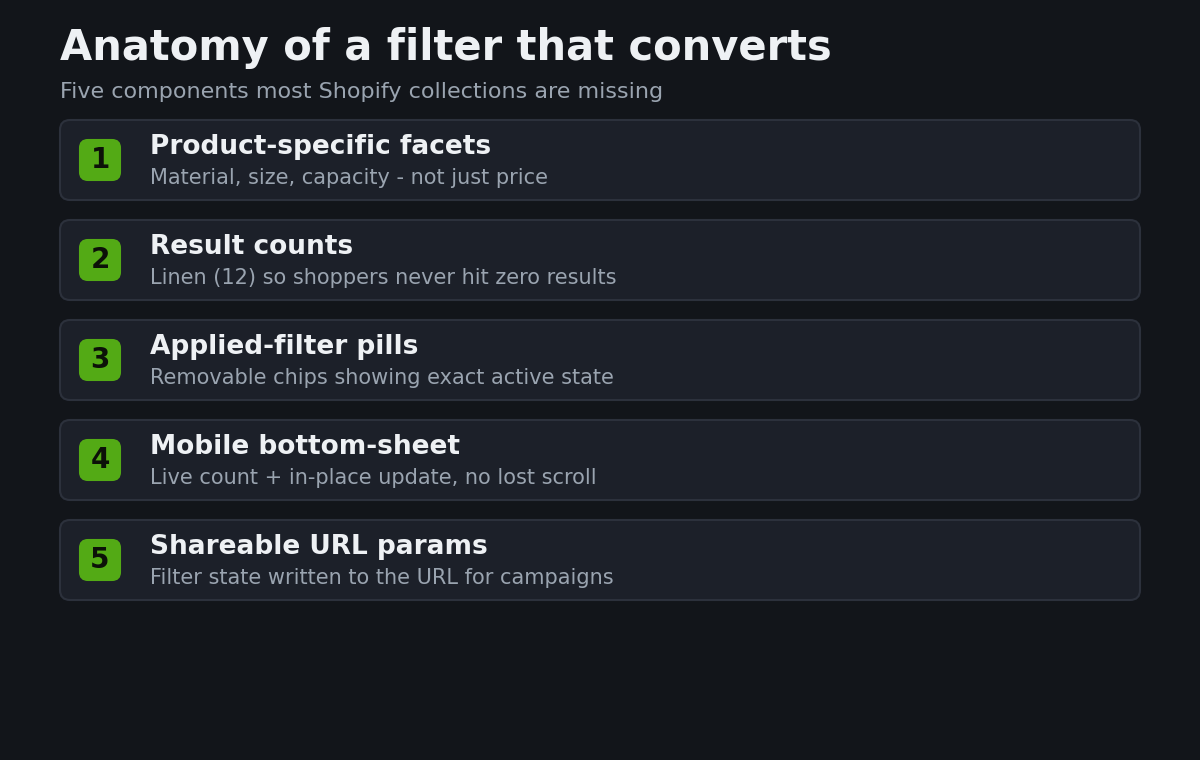
| Check | Failing if | Why it costs sales |
|---|---|---|
| Product-specific facets | Only price + availability exist | Shoppers cannot narrow by the attribute they care about (size, material, capacity) |
| Result counts | No count shown next to each filter value | Shoppers stack filters, hit zero results, and leave |
| Applied-filter visibility | No pills showing what is active | Shoppers lose track of state and re-start |
| Mobile parity | Filters hidden behind a modal with a lost scroll position | 78% of mobile sites fail here; it is where most traffic is |
| Shareable URLs | Filter state disappears on refresh or share | Kills paid-landing targeting and internal linking |
If a collection fails three or more of those, filtering is very likely leaving money on the table. For a mid-size Australian homewares retailer we assessed last year, weak filtering on their two largest collections was a plausible $30,000 AUD a month in lost sessions, most of it on mobile, none of it visible in any dashboard they were looking at.
Start with taxonomy, not the app
The most common mistake we see is that stores configure filters before they have decided what a shopper is actually trying to accomplish. Faceted search is a data-modelling problem first and a UX problem second. The app configuration is the last 10%.
Before touching Search & Discovery, we map every collection to the two or three decisions a shopper makes to qualify a product. For apparel it is usually size, colour, and price. For homewares it might be room, material, and dimensions. For an industrial supplier it could be voltage, thread size, and stock status. The facets that matter are almost never the ones already sitting in product type and vendor; they are the product-specific attributes Baymard says three-quarters of stores get wrong.
We plan this in a simple facet map before any implementation. Here is the artefact for a homewares collection.
| Facet | Source | UI control | Logic |
|---|---|---|---|
| Price | Native variant price | Range slider + preset bands | Single-select band |
| Availability | Native inventory | Single toggle (In stock) | Boolean |
| Material | Metafield (list.single_line_text) | Checkbox group | OR within group |
| Room | Metafield (list.single_line_text) | Checkbox group | OR within group |
| Colour | Variant option | Swatch group | OR within group |
The column that changes everything is “Source.” Native fields (price, availability, variant options, product type, vendor, tags) are filterable out of the box. Anything richer, the material of a sofa, the wattage of a light, the certification on a safety boot, has to live in a structured metafield before it can ever become a filter. That is the piece stores skip, and it is why their filter list stays stuck on price and availability forever.
Metafields are the backbone of product-specific filters
To filter by an attribute, that attribute has to exist as clean, structured data on every product. On native Shopify this means a product metafield of the right type. For a filterable list of values, the type needs to be single line text or a list of single line text, not a rich-text or a JSON blob, because Shopify’s storefront filtering only reads specific metafield types as facets.
Here is the metafield definition we set up for a “Material” filter, expressed as the Shopify admin configuration and a sample value.
Definition:
  Namespace and key: filter.material
  Type: List of single line text
  Access: Storefront (must be exposed to the storefront)

Product value example:
  ["Solid oak", "Brushed brass", "Linen"]
Two rules we never break. First, the metafield must be published to the storefront, or it will exist in the admin and be invisible to filtering. Second, the values must be governed. If one product says “Oak”, another says “Solid oak”, and a third says “American White Oak”, you get three filter options that should have been one, and the facet becomes noise. We usually enforce a controlled vocabulary through a metaobject or a validated list so merchandisers cannot free-type inconsistent values. Clean input data is 80% of a good filter; the front end is the easy part.
Configuring Shopify Search & Discovery the right way
Shopify’s free Search & Discovery app is the native, no-headless way to turn that data into storefront filters. It reads product data, variant options, and eligible metafields, and lets you choose which appear as facets, in what order, and under what label. Because Insiteful builds exclusively on native Shopify, this is where we do the work rather than reaching for a headless search service.
The defaults are deliberately minimal: availability and price. The real work is in Filters, where you add product type, vendor, variant options, and any storefront-published metafields, then rename and reorder them so they read like a shopper thinks. “filter.material” in the admin should surface as “Material” on the page. Group order should mirror the decision sequence from your facet map, not the order Shopify happens to list them.
One configuration detail earns its keep more than any other: showing result counts. When a shopper can see that “Linen (0)” would return nothing, they never select it, and they never hit the dead-end zero-results page that Baymard identifies as a primary abandonment trigger. If your theme supports it, always expose counts, and always keep facet groups visible after a selection so the shopper can keep refining rather than starting over.
The URL structure that makes filters shareable and indexable
When a filter is applied on native Shopify, the state is written into the URL as query parameters. This is not cosmetic; it is what makes filtered views shareable, bookmarkable, and usable as paid-ad landing pages. Understanding the parameter grammar lets you build campaign links and internal links that drop a shopper straight into a pre-filtered view.
Here is the cheat-sheet we hand to clients. Each parameter maps to a facet type.
?filter.v.price.gte=50&filter.v.price.lte=200   price band (variant price)
?filter.v.availability=1                        in stock only
?filter.p.product_type=Sofas                    product type
?filter.p.vendor=Barnaby                        vendor
?filter.v.option.color=Sage                     variant option (colour)
?filter.p.m.filter.material=Linen               product metafield (filter.material)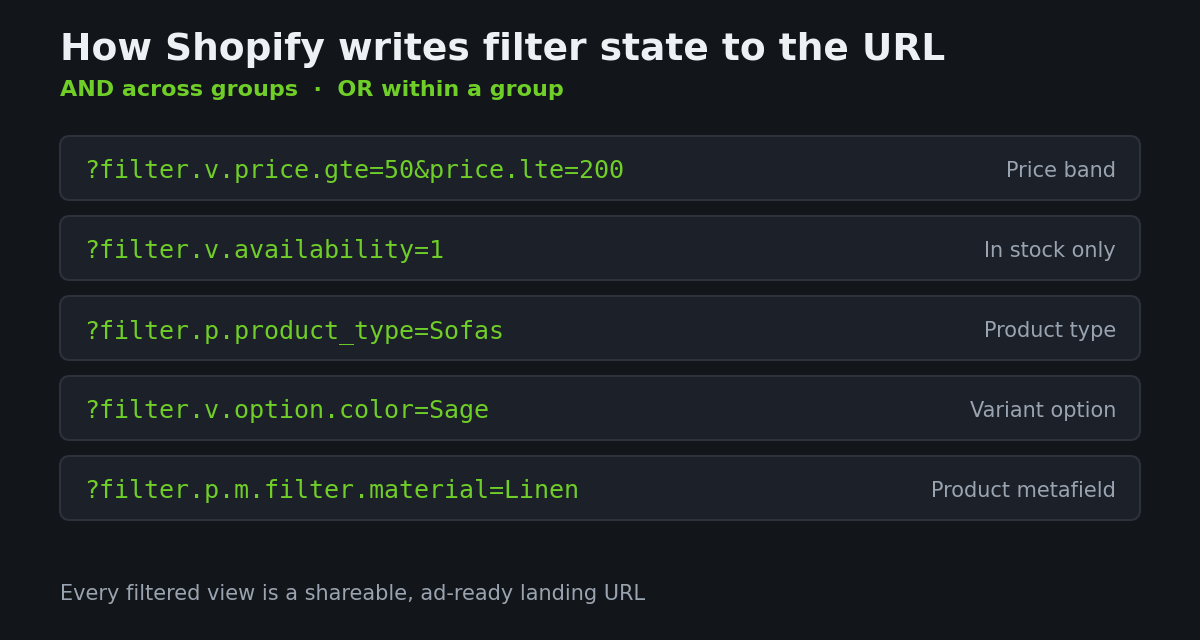
The logic rule matters when you stack these: Shopify applies AND across different facet groups and OR within the same group. So colour is Sage OR Charcoal, AND material is Linen, AND price is 50 to 200. That single rule explains most “why is my filter returning weird results” tickets. We use it deliberately: a “Living room, in stock, under $500” campaign link is just three parameters, and it lands the shopper exactly where the ad promised.
Rendering facets in the theme
On an Online Store 2.0 theme, the applied filters are available in Liquid through the collection object, which means you have full control over how facets render without any third-party front end. The core loop reads the filters Shopify has generated from your Search & Discovery config.
{% for filter in collection.filters %}
  <fieldset>
    <legend>{{ filter.label }}</legend>
    {% for value in filter.values %}
      <label class="{% if value.count == 0 %}is-disabled{% endif %}">
        <input type="checkbox" name="{{ value.param_name }}"
               value="{{ value.value }}"
               {% if value.active %}checked{% endif %}>
        {{ value.label }} ({{ value.count }})
      </label>
    {% endfor %}
  </fieldset>
{% endfor %}
The three properties that carry the UX are value.count, value.active, and the ability to disable zero-count options. Rendering the count next to every value, visually flagging the active ones, and greying out anything that would return nothing is the difference between a filter that feels helpful and one that feels like a trap. This is also where the applied-filter pills live: a second short loop over the active values renders removable chips at the top of the results so the shopper always knows the exact state they are in.
The mobile filter drawer that stops the back-and-forth
Because 78% of mobile sites fail at filtering and most Australian store traffic is now mobile, the phone experience is where the money is. The classic failure is a full-screen filter modal that, on close, throws the shopper back to the top of the collection and loses their scroll position. Every filter change becomes a round trip. Baymard documents this “back-and-forth” as one of the most damaging mobile filtering patterns.
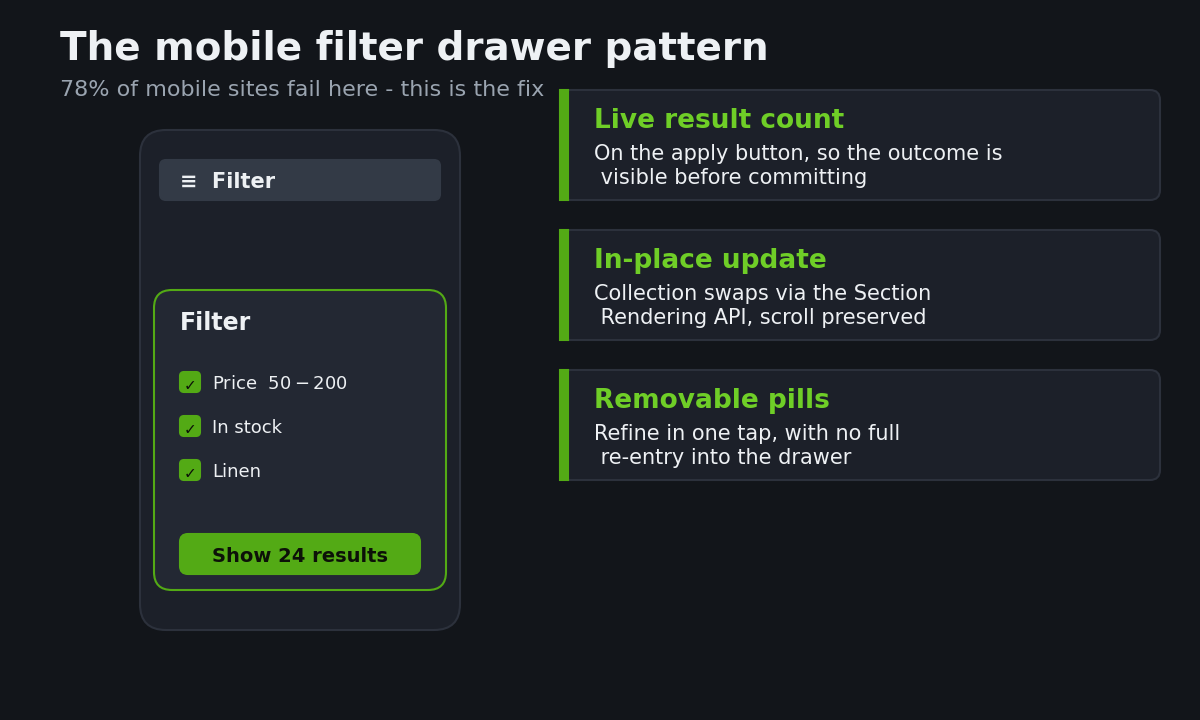
The pattern we build instead is a bottom-sheet drawer with three non-negotiables. First, a live result count on the apply button (“Show 24 results”) so the shopper sees the consequence of their selection before committing. Second, the collection updates in place on apply, preserving scroll position, rather than reloading the page. Third, applied-filter pills sit above the grid and are individually removable, so refining is one tap, not a full re-entry into the drawer. That single spec, live count plus in-place update plus removable pills, resolves the majority of mobile filtering complaints we inherit from previous builds.
Filtering without the full-page reload
The in-place update above is not a nice-to-have; it is a performance decision. A filter change that triggers a full page navigation forces the browser to re-parse, re-render, and re-run the theme’s JavaScript, which is slow on mid-range Android phones and punishes your interaction responsiveness. The native solution is the Shopify Section Rendering API, which lets the theme fetch just the updated product-grid section and swap it in, keeping the rest of the page intact.
The mechanics are simple: when a filter changes, the theme requests the collection URL with the applied parameters plus a section identifier, receives back only the rendered grid markup, and replaces the DOM node. No full reload, no lost scroll, no re-running third-party scripts. This keeps filtering fast and protects the interaction metrics that increasingly affect both conversion and, through Interaction to Next Paint, search ranking. A responsive filter is a fast filter, and a fast filter converts.
Measuring whether your filters actually work
Filtering is one of the few UX areas where you can measure intent directly, because every interaction is an explicit signal of what the shopper wants. We instrument four events on every build and review them monthly.
| Signal | What it tells you | Action if it is bad |
|---|---|---|
| Filter usage rate | % of collection sessions that apply any filter | Low rate means facets are not discoverable or not relevant |
| Zero-result rate | % of filter combinations returning nothing | High rate means missing counts or bad data governance |
| Filter-to-PDP rate | % of filtered sessions that reach a product page | Low rate means the facets do not match buyer intent |
| Most-used facets | Which attributes shoppers actually reach for | Promote these; demote or remove the unused ones |
The “most-used facets” signal is the one that pays for itself. Nine times out of ten, shoppers cluster on two or three facets and ignore the rest. Once you know which, you promote them to the top, collapse the long tail, and the whole experience gets faster and clearer. Filtering is never “done”; it is tuned against real behaviour, the same way you would tune a product page or a set of conversion microinteractions.
How we do it at Insiteful
When a client comes to us with a catalogue that has outgrown its filters, we do not start in the Search & Discovery app. We start with the data. The sequence is deliberate and it is the same every time.
First, we audit the largest collections against the five-point check above and pull the current filter-usage and zero-result data so we are arguing from evidence, not opinion. Second, we build the facet map: for each collection, the two or three decisions a shopper makes, and the data source behind each one. Third, we model the data, defining and governing the metafields, cleaning inconsistent values, and enforcing a controlled vocabulary so the facets stay clean as the range grows. Only then do we configure Search & Discovery, wire the facets into the theme with counts and removable pills, and build the mobile drawer with an in-place, Section-Rendering-API-driven update. Finally, we instrument the four signals and hand over a filter that can be tuned rather than rebuilt.
Because we build exclusively on native Shopify, none of this depends on a headless rebuild or a third-party search platform with a monthly licence attached. It is the platform’s own tooling, engineered properly. That is the difference between a filter that was switched on and a filter that was designed, and on a catalogue store it is often the highest-return work we do all year.
The takeaway
Faceted search is not a theme feature you enable; it is a data model, a UX system, and a performance decision working together. The stores that get it right, the roughly one in six that Baymard rates as effective, are not using magic apps. They have clean metafield data, a facet set that mirrors how shoppers actually decide, result counts everywhere, a mobile drawer that does not lose its place, and an in-place update that keeps the whole thing fast. Every one of those is buildable on native Shopify today.
If your collections have grown faster than your filters, the gap is almost certainly costing you sessions you never see. Scope a build assessment with Insiteful and we will show you exactly where your faceted search is leaking, and what it would take to fix it.