
A sticky add to cart bar looks like the easiest win in Shopify conversion work. Pin a button to the bottom of the mobile screen, watch add-to-cart rate climb, and move on. We have built it on dozens of stores, and we have also removed it from a few. The honest summary is that it works when the page it sits on has a specific problem, and it quietly costs you money when it does not.
This is the build and decision guide we use at Insiteful: when a sticky bar earns its place, the exact anatomy, working Liquid, CSS and JavaScript for a native theme, the accessibility traps most implementations fall into, and how to test it so you know whether it paid for itself.
Why mobile product pages need help in the first place
Mobile is where Australian shoppers start, and increasingly where they finish. A roundup of mobile commerce data citing InsideRetail puts smartphone shopping among Australians at 95%, and Statista figures cited in the same piece put smartphones at roughly 71% of global online orders in Q4 2025. Australians spent a record $82.6 billion AUD online in 2025, according to the Australia Post eCommerce Report 2026 (also cited there). Most of that journey runs through a thumb.
The same sources show the gap that makes this interesting. Foundry CRO data cited in that roundup puts desktop conversion at 3.9% against 1.8% on mobile. Mobile traffic is larger than mobile revenue, and the difference is friction. Australia Post found 52% of shoppers abandoned a cart in 2025 because checkout was too long or complicated, rising to 67% among higher spenders. A sticky add to cart bar does nothing for checkout, but it attacks the stage before it: the moment someone has decided to buy and has to scroll back up to find the button.
That moment is the entire case for the pattern. A long mobile product page runs through gallery, title, price, variants, description, reviews, shipping information and recommendations. The primary button sits near the top, and a customer who reads down to the reviews has left it three screens behind. The bar removes the scroll-back. It does not create intent, and that distinction drives every decision below.
The evidence is mixed, and you should know that before building
Most articles on this topic quote one winning test and stop. Here is the fuller picture from the public results we could find.
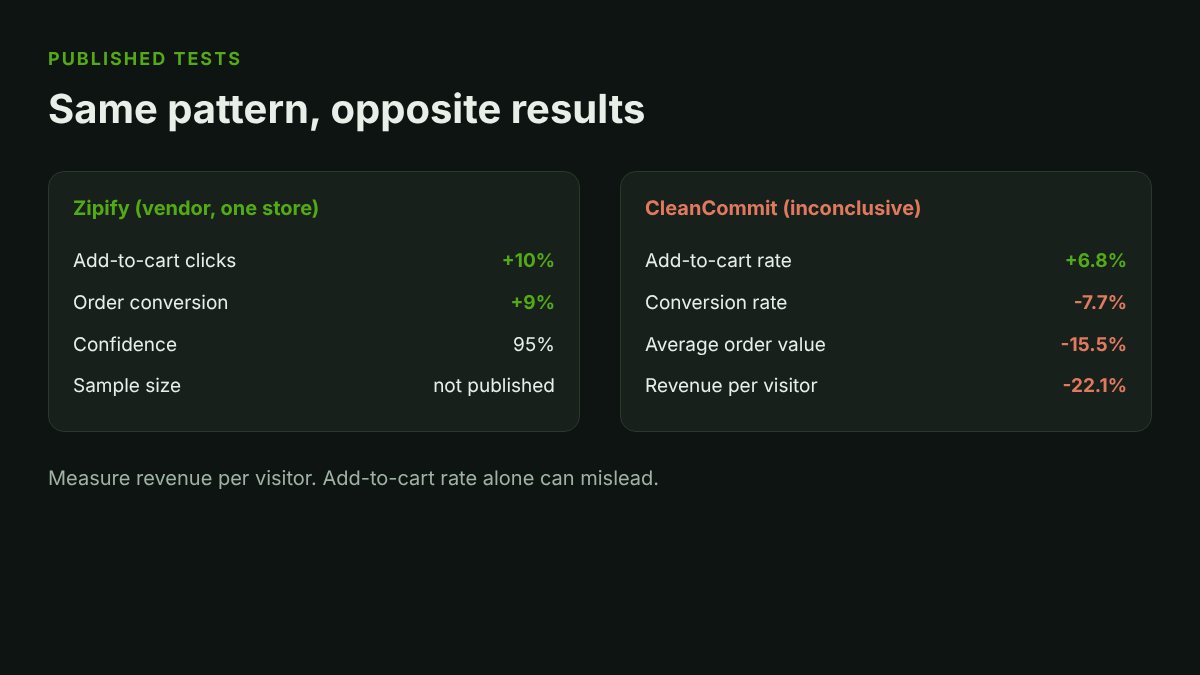
Zipify reported a sticky footer variant lifting mobile add-to-cart clicks by 10% and order conversion by 9% at 95% confidence on an eight-figure Shopify store with about 68% mobile traffic. Useful, but the sample size and duration are not published, it is one store, and Zipify sells the feature.
A test logged on CleanCommit went the other way. The mobile bottom sticky button raised add-to-cart rate by 6.8% but moved conversion rate by -7.7%, revenue per visitor by -22.1% and average order value by -15.5%. The result is marked inconclusive with no significance published, so treat it as a warning rather than proof. The pattern is the useful part: more people pressed the button, and fewer finished buying.
Why would more add to carts mean less revenue? In our builds the cause is nearly always one of three things. The bar encouraged an early add before the shopper had picked a variant or read shipping terms, so the cart filled with returns waiting to happen. The bar covered something that mattered, such as a cookie banner, a chat widget or the checkout button in the cart drawer. Or the bar fired on a page that was already short, adding clutter to a view where the button was never far away.
Our rule from this: the sticky bar is a hypothesis for your store, not a best practice. Build it, instrument it properly, and keep the version that moves revenue per visitor.
When a sticky add to cart bar earns its place
We run a short diagnostic before recommending one. The bar helps when at least two of these are true.
- The page is long. If the main button leaves the viewport on a typical scroll to reviews, the bar saves real effort. A product page that fits in two screens does not need it. Our product page design guide covers how to shorten pages before adding patches.
- Mobile traffic is above 60%. Below that, desktop behaviour dominates and the bar (which we hide at wide widths) does little.
- The product is a single decision. One variant, or variants that are simple to pick, suits the bar. Products with five option groups send shoppers back to the picker anyway.
- Session recordings show scroll-back. Shoppers scrolling up and down looking for the button is the clearest signal you will get.
- Reviews, specs or size guides sit far below the fold. These are the content blocks people read before buying, and each one pushes the button further away.
It is a poor fit when the product needs a considered variant choice, when the page is short, or when price changes with options in ways the bar cannot show clearly. A $1,850 AUD made-to-order sofa with fabric, leg and size options is a configuration job, not an impulse add. A $39 AUD single-SKU skincare product is the opposite, and the bar is almost free money there.
Anatomy of a bar that does not hurt you
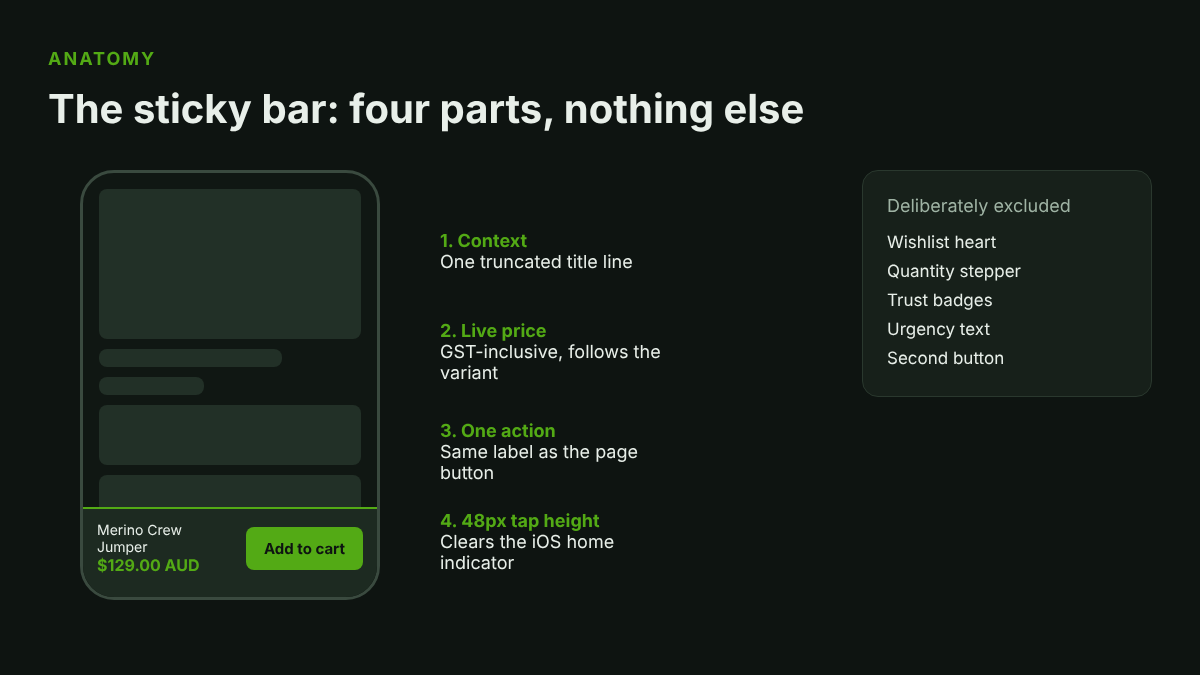
Every element in the bar has to justify its pixels. The version we ship has four parts and nothing else.
One line of product context. A truncated title is enough. Do not add a thumbnail on mobile unless the catalogue has near-identical products; it eats width the button needs. A live price. This matters more than it looks, and it matters for Australian law, which we return to below. One action. The button label should match the main button exactly, so the bar and the page never disagree. A minimum 48px tap height and at least 8px of space from the screen edge so it clears the iOS home indicator.
What stays out: wishlist icons, quantity steppers, trust badges, urgency text, and a second button. Every extra control is another decision for a shopper who already made one. If you want urgency, our piece on honest scarcity UX covers what holds up under the incoming Australian reforms.
The native build: Liquid, CSS and JavaScript
You do not need an app for this. Apps in this category typically add a script, a stylesheet and often a remote call, and every one of those lands on your Core Web Vitals. A native build is around 60 lines. This is the version we start from on Online Store 2.0 themes.
Step 1, the snippet. Render it inside the product section so it inherits section context.
{%- comment -%} snippets/sticky-atc.liquid {%- endcomment -%}
<div class="sticky-atc" id="StickyATC-{{ section.id }}" hidden aria-hidden="true">
  <div class="sticky-atc__info">
    <span class="sticky-atc__title">{{ product.title | escape }}</span>
    <span class="sticky-atc__price" data-sticky-price>
      {{ product.selected_or_first_available_variant.price | money_with_currency }}
    </span>
  </div>
  <button type="button" class="sticky-atc__button button" data-sticky-submit>
    {{ 'products.product.add_to_cart' | t }}
  </button>
</div>
Step 2, the CSS. The bar starts off-screen and slides in with a transform, not a height or position change, which keeps it out of layout and protects your cumulative layout shift score. The web.dev guidance sets the good threshold at 0.1 or less and recommends transforms over top and bottom changes for exactly this reason.
.sticky-atc {
  position: fixed;
  inset: auto 0 0 0;
  z-index: 40;
  display: flex;
  align-items: center;
  gap: 12px;
  padding: 10px 16px calc(10px + env(safe-area-inset-bottom));
  background: rgb(var(--color-background));
  border-top: 1px solid rgba(var(--color-foreground), .12);
  transform: translateY(100%);
  transition: transform .2s ease;
}
.sticky-atc.is-visible { transform: translateY(0); }
.sticky-atc__info { flex: 1; min-width: 0; }
.sticky-atc__title { display: block; overflow: hidden; text-overflow: ellipsis; white-space: nowrap; }
.sticky-atc__button { flex: 0 0 auto; min-height: 48px; padding-inline: 24px; }
@media (min-width: 750px) { .sticky-atc { display: none; } }
@media (prefers-reduced-motion: reduce) { .sticky-atc { transition: none; } }
html { scroll-padding-bottom: 88px; }
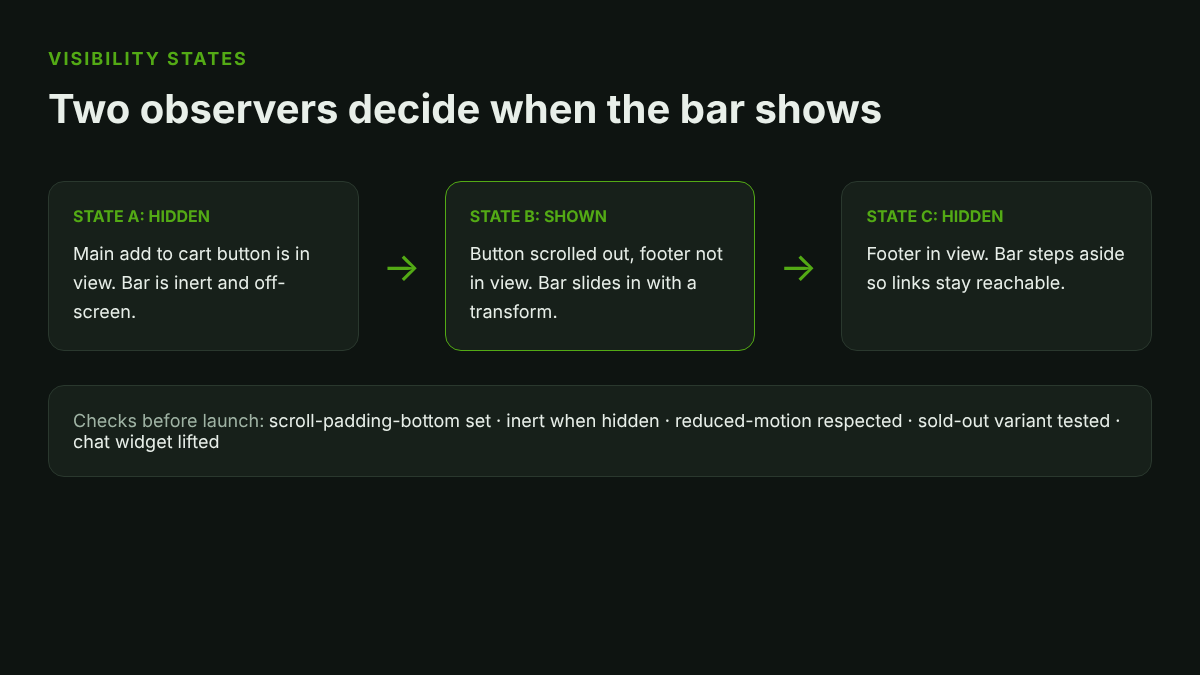
Step 3, the behaviour. IntersectionObserver is the right tool. A scroll listener runs on every frame and shows up in your INP numbers; an observer fires only when visibility changes. We watch two things: the main button, so the bar appears only once the real one is gone, and the footer, so the bar gets out of the way before it covers links and legal text.
const bar = document.getElementById('StickyATC-' + sectionId);
const mainButton = document.querySelector('product-form [name="add"]');
const footer = document.querySelector('footer');
let mainVisible = true, footerVisible = false;

const update = () => {
  const show = !mainVisible && !footerVisible;
  bar.hidden = false;
  bar.classList.toggle('is-visible', show);
  bar.toggleAttribute('inert', !show);
};

new IntersectionObserver(([e]) => { mainVisible = e.isIntersecting; update(); })
  .observe(mainButton);
new IntersectionObserver(([e]) => { footerVisible = e.isIntersecting; update(); })
  .observe(footer);

bar.querySelector('[data-sticky-submit]').addEventListener('click', () => {
  mainButton.click();
});

document.addEventListener('variant:change', (event) => {
  const v = event.detail.variant;
  const price = bar.querySelector('[data-sticky-price]');
  price.textContent = Shopify.formatMoney(v.price, window.theme.moneyFormat);
  bar.querySelector('[data-sticky-submit]').disabled = !v.available;
});
Two details here cost us hours on early builds. First, the bar clicks the real button rather than posting to /cart/add.js itself, so every behaviour your theme attaches to add to cart (cart drawer open, analytics events, bundle rules, line item properties) still fires. A second add path that forgets the line item properties is how stores end up with engraved products missing the engraving text. Second, the bar listens to the variant change event so the price and the disabled state follow the picker. A bar showing yesterday’s variant price is a support ticket.
Theme event names differ. Dawn-family themes publish variant changes through a pub/sub system; others dispatch their own events. Check your theme before wiring this up, and test with a sold-out variant, because that is the state developers forget.
The accessibility traps
A fixed bar is one of the most common sources of keyboard and screen reader failures we find in audits, and it lines up neatly with a rule in WCAG 2.2.
Success criterion 2.4.11, Focus Not Obscured (Minimum), is Level AA. When a component receives keyboard focus, fixed content must not entirely hide it. The W3C names sticky footers specifically, and lists the failure as F110: a sticky footer or header completely hiding focused elements. Tab down a product page with a pinned bar and the focused review link or size chart button slides behind it. The fix is the single line you saw in the CSS, scroll-padding-bottom on the root element, which keeps focused items clear of the bar when the browser scrolls them into view.
The other three traps are quieter. A hidden bar must not be reachable: we use inert while it is off-screen, otherwise keyboard users tab into an invisible button. The animation must respect prefers-reduced-motion, which the CSS handles. And the button needs a visible focus ring that survives the theme’s own overrides. For the wider set of fixes we apply on every build, read our guide to the WCAG failures costing Shopify stores sales.
Australian specifics: price, GST and the new consumer law
Prices on Australian stores are displayed inclusive of GST, and a bar that shows a bare number must show the same figure the shopper will see at checkout. The Australian Consumer Law is being tightened around unfair trading practices and drip pricing, with law firm summaries such as Marsdens placing the commencement in 2027. Drip pricing means revealing mandatory charges late in the journey. A sticky bar that shows $89 AUD while the page footer quietly adds a $12 AUD fee at checkout is the type of pattern regulators describe.
Our practice is simple. Show the full price including GST in the bar. If a variant carries a surcharge (an extended size, a personalisation fee), update the bar price with the variant. If shipping is free above a threshold, leave it out of the bar and keep it on the page, but never let the bar imply a price the checkout will not honour. This is also a conversion argument: shoppers who meet a higher number at checkout than they saw on the page are the shoppers who abandon.
For stores selling across borders, pair this with the currency handling in your variant picker so the bar follows market pricing as well as variant pricing.
Interactions with the rest of the page
The bar is one more fixed element in a viewport that is already crowded. We map every fixed element before building: cookie consent, chat launcher, announcement bar, back to top button and any app widgets. Two of these on the bottom edge is a collision.
- Chat widgets. Lift the launcher above the bar using its CSS variable or position offset. If it cannot move, we hide the launcher on product pages on mobile.
- Cookie banners. The bar waits until the banner is dismissed. Stacking them leaves the shopper with 120px of usable screen.
- Cart drawer. The bar must sit below the drawer in z-index and hide when it opens. See our cart drawer build guide for the open and close events to hook.
- Buy now buttons. Accelerated checkout buttons belong on the page. Duplicating them in the bar crowds it, and the 48px height rule goes first.
On performance, the native build adds a few hundred bytes of CSS and under 1KB of JavaScript, with no network calls. That is why we prefer it over an app that loads a third-party script just to draw a button. If you are weighing the cost of apps generally, our CLS optimisation guide shows how fixed elements get measured.
How we test it
The measurement is where most sticky bar projects go wrong. Add-to-cart rate rises almost every time, which is why it is a misleading target. The CleanCommit result above shows add-to-cart up 6.8% with revenue per visitor down 22.1%.
We test on revenue per visitor as the primary metric, with conversion rate and average order value as guardrails, and add-to-cart rate as a diagnostic only. We also track returns on the exposed segment for 30 days, since an early add can inflate wrong-variant returns. The event below tags every bar click so that segment is queryable in GA4.
/* Fires GA4 events so the A/B test measures the real outcome */
bar.querySelector('[data-sticky-submit]').addEventListener('click', () => {
  window.dataLayer = window.dataLayer || [];
  window.dataLayer.push({ event: 'sticky_atc_click', variant_id: currentVariantId });
});
On sample size, a store with 40,000 monthly mobile sessions and a 1.5% conversion rate needs several weeks to detect a 10% relative lift with any confidence. Many stores will not hit significance in a month. If that is you, run the test for at least two full business cycles, accept a directional answer, and make the decision on revenue per visitor rather than waiting for a perfect p-value. Do not stop a test the day it looks good.
| Metric | Role | Ship if |
|---|---|---|
| Revenue per visitor | Primary | Flat or up |
| Conversion rate | Guardrail | Not down more than noise |
| Average order value | Guardrail | Not down |
| Add-to-cart rate | Diagnostic | Informational only |
| 30-day returns | Guardrail | No rise in wrong-variant returns |
How we do it at Insiteful
We treat the sticky bar as a section block inside the product template rather than a bolt-on, so merchants control it in the theme editor: on or off, mobile only, which products show it, and the button label. That sits alongside the brand guardrails we build into every theme, and it means the bar can be switched off for a configurable product without a developer.
Before we build, we check recordings for scroll-back, the length of the page on a typical handset, and variant complexity per product type. For catalogues mixing simple and configured products, we enable the bar on the simple ones and leave it off for the rest. After launch we run the revenue per visitor test described above and report the result, including when the answer is that the bar should come off. Roughly a third of the time on stores with short pages, that is the outcome, and we would rather tell you than keep billing for a feature that does not pay.
The build itself takes a developer about half a day on an Online Store 2.0 theme, including accessibility checks on iOS Safari, Android Chrome and keyboard-only navigation. That is a small line item next to what an average mobile product page earns in a year.
Common questions
Should the bar show on desktop? Usually no. A desktop viewport rarely scrolls the button out of reach in the same way, and a fixed bar on a wide screen is mostly noise. We hide it above 750px.
Top or bottom? Bottom, for mobile. It sits within thumb reach and does not compete with the browser’s top controls or your sticky header. Top bars suit desktop sticky headers carrying add to cart, a separate pattern.
Does it affect Core Web Vitals? A native build with transform animation and observers should not shift layout or add input delay. Apps are the variable. Measure CLS and INP before and after with real user data rather than a single lab run.
Do we need an app? No, unless nobody on your team can maintain code. In that case, pick one that loads no external script and lets you set the breakpoint.
Next step
If your mobile product pages are long and your recordings show shoppers hunting for the button, a sticky bar is worth testing properly. If you would like us to look at your product template, your variant complexity and your mobile data and tell you whether it will pay, start with our build assessment. We will give you a straight answer, including when it is no.
Sources: Australia Post eCommerce Report 2026 and Statista/Foundry CRO figures via Appetiser; Zipify; CleanCommit; W3C WCAG 2.2; web.dev; Marsdens.