
Every Shopify performance conversation we walk into starts the same way. Someone opens PageSpeed Insights on the homepage, points at a number, and asks why it is red. Then we run the same test twice more and get three different numbers. The score moved eleven points and nothing on the site changed.
That is the trap. A lab score is one simulated visit, on one throttled connection, from one data centre, on one page. Your actual customers are on a train to Parramatta with fourteen tabs open, on a four-year-old iPhone, hitting a product page you never tested. Google does not rank you on the simulation. It ranks you on them.
Real user monitoring closes that gap. It is the instrumentation layer that tells you what your Australian shoppers actually experienced, on which template, on which device, and which specific element or script caused the problem. This article covers how we build it into a Shopify theme, what it costs, and what it consistently finds.
The three data sources, and what each one can honestly tell you
Before touching any code, it is worth being precise about what you already have and where it runs out.
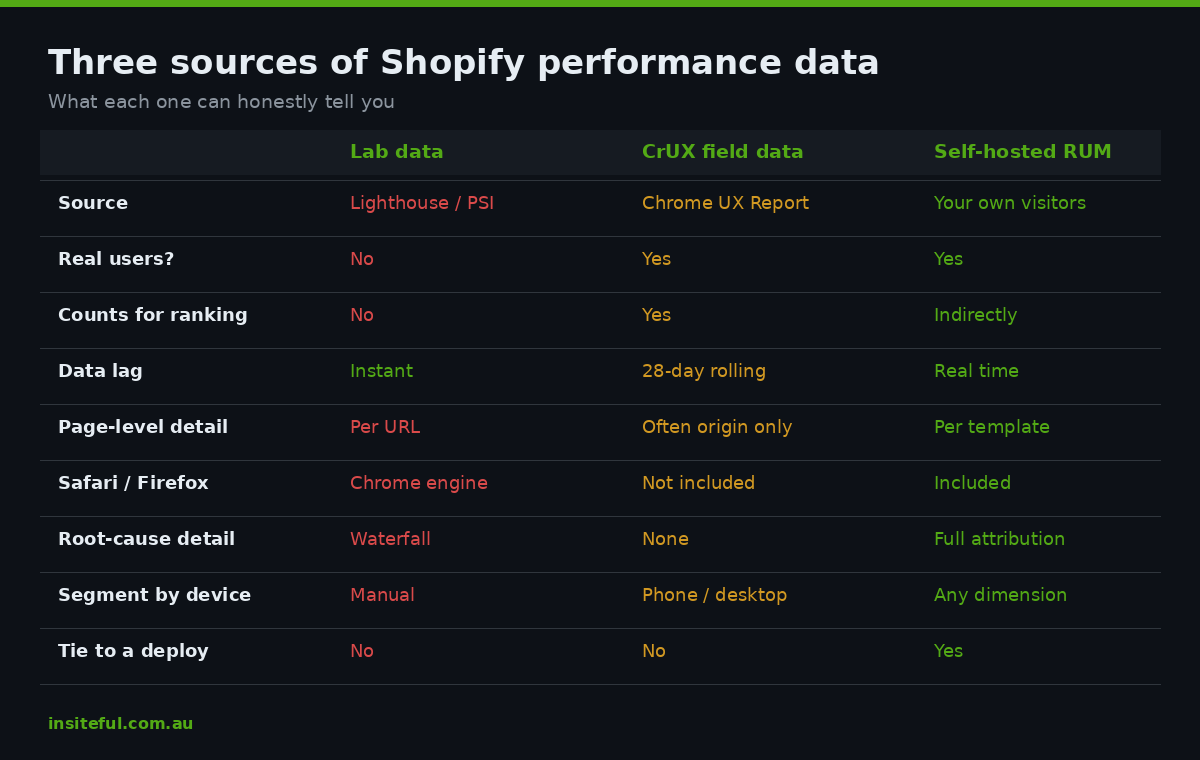
Lab data comes from Lighthouse, PageSpeed Insights, WebPageTest and every speed-test app in the Shopify App Store. It is a synthetic run under controlled conditions. Its value is that it is repeatable and gives you a waterfall to debug against. Its limit is that it is one visit that never happened.
Field data comes from the Chrome User Experience Report. This is the dataset Google actually uses for the page experience signal, and it is the only one that counts for ranking. It is real, it is aggregated from opted-in Chrome users, and it is free. It also has four properties that make it close to useless for diagnosis:
- It is a 28-day rolling average. Ship a fix today and you will not see the full effect for roughly a month, which means you cannot tell whether last Tuesday’s app install hurt you until late September.
- It reports the 75th percentile. Google’s pass mark is that 75% of visits must be good, so a quarter of your traffic can be having a miserable time while the origin shows green.
- It is frequently origin-level, not page-level. Low-traffic templates get folded into a single number, so a fast homepage can mask a collection page that is falling over.
- It is Chrome only. Safari and Firefox visitors are simply not in the dataset.
That last point matters more in Australia than almost anywhere. iOS share here sits well above the global average, and Safari accounts for roughly 23.4% of mobile browsing globally against 51.2% in North America. For a typical Australian fashion or homewares store, a very large slice of mobile revenue is arriving through a browser that CrUX cannot see at all.
Real user monitoring is the third layer, and it is the one almost nobody installs. You collect the metrics yourself, from your own visitors, with the dimensions you care about attached. No 28-day lag. No aggregation across templates. No browser blind spot.
What changed in December 2025, and why RUM finally makes sense
For years the honest objection to self-hosted RUM was that it only worked properly in Chrome. The underlying browser APIs that make LCP and INP measurable were Chromium-only, so a self-built collector reproduced the exact blind spot you were trying to fix.
That ended in December 2025, when LCP and INP reached Baseline Newly Available status across Chrome, Firefox, Safari and Edge. Real user monitoring can now collect Core Web Vitals from effectively all visitors rather than only Chrome users.
For an Australian merchant this is the single biggest change in performance measurement in five years. It means the mobile Safari traffic that drives a large share of your revenue is finally measurable, and you can compare it directly against Chrome instead of assuming the two behave the same. They do not. In the stores we have instrumented since, Safari LCP is routinely 300 to 600 milliseconds slower than Chrome on the same product template, largely because of how differently the two handle image decoding and script scheduling.
The thresholds themselves have not moved. LCP under 2.5 seconds, INP under 200 milliseconds, CLS under 0.1, all measured at the 75th percentile. What has changed is that you can now measure all three yourself, honestly, across your whole audience. We covered what each threshold means for a Shopify store in our 2026 Core Web Vitals guide.
Why the Web Pixels sandbox is the wrong place for this
The first instinct of most Shopify developers is to put the collector in a custom pixel. It feels tidy, it survives theme updates, and it is where all the other tracking lives.
It does not work, and it is worth understanding why so you do not waste a week on it.
Custom pixels run inside a sandboxed iframe. Merchant-installed pixels get the lax sandbox, app-installed pixels get the strict one, and both are deliberately walled off from the page. They cannot read the DOM, cannot render interface elements, and cannot observe the main document’s paint or interaction timeline. The performance APIs you need report on the frame they run in, and the frame the pixel runs in is not the frame your customer is looking at.
Put a web-vitals collector in a custom pixel and it will run without errors and report numbers that describe an empty iframe. That is worse than no data, because it looks like data.
The collector belongs in the theme, loaded from theme.liquid, in the main document. That is the only place with a legitimate view of the customer’s experience. Worth noting alongside this: the legacy Additional Scripts feature is being retired across the January to June 2026 window, so any performance or analytics logic still parked there needs relocating regardless.
Building the collector
The whole thing is about forty lines. We use the attribution build of Google’s web-vitals library rather than the standard build, because the standard build tells you that LCP was 4.1 seconds and the attribution build tells you which element it was, what delayed it, and how the time broke down.
The library ships several formats. For a Shopify theme the IIFE attribution build is the right one, loaded as a deferred script so it never competes with the render path.
<!-- snippets/rum-collector.liquid -->
<script type="module">
  import {onLCP, onINP, onCLS, onTTFB} from
    'https://cdn.jsdelivr.net/npm/web-vitals@5/dist/web-vitals.attribution.js';

  const endpoint = '/apps/rum/collect';

  const context = () => ({
    template: {{ template | json }},
    handle: {{ product.handle | default: collection.handle | default: '' | json }},
    viewport: window.innerWidth < 768 ? 'mobile' : 'desktop',
    conn: (navigator.connection || {}).effectiveType || 'unknown',
    dpr: window.devicePixelRatio,
    tz: Intl.DateTimeFormat().resolvedOptions().timeZone
  });

  const send = (metric) => {
    const body = JSON.stringify({
      name: metric.name,
      value: Math.round(metric.value),
      rating: metric.rating,
      navType: metric.navigationType,
      attribution: metric.attribution,
      ...context()
    });
    if (navigator.sendBeacon) navigator.sendBeacon(endpoint, body);
    else fetch(endpoint, {body, method: 'POST', keepalive: true});
  };

  onLCP(send);
  onINP(send, {reportAllChanges: false});
  onCLS(send);
  onTTFB(send);
</script>
Three details in there are doing most of the work.
navigator.sendBeacon rather than a normal fetch. Metrics are finalised when the page is being unloaded or backgrounded, which is exactly when a regular request gets cancelled. Beacon requests survive the page going away. Get this wrong and you silently lose the slowest sessions, which are the only ones you actually needed.
metric.navigationType distinguishes a fresh navigation from a back-forward cache restore. A bfcache restore is close to instant and will drag your averages down in a way that flatters you. The library reports back-forward-cache as a navigation type specifically so you can segment it out. If you do not, a store with heavy back-button behaviour looks faster than it is.
metric.attribution is the payload that turns monitoring into debugging, and it is worth its own section.
Attribution: from “LCP is bad” to “this image, this script, this millisecond”
The attribution object carries different fields per metric, and each one answers a question you would otherwise guess at.
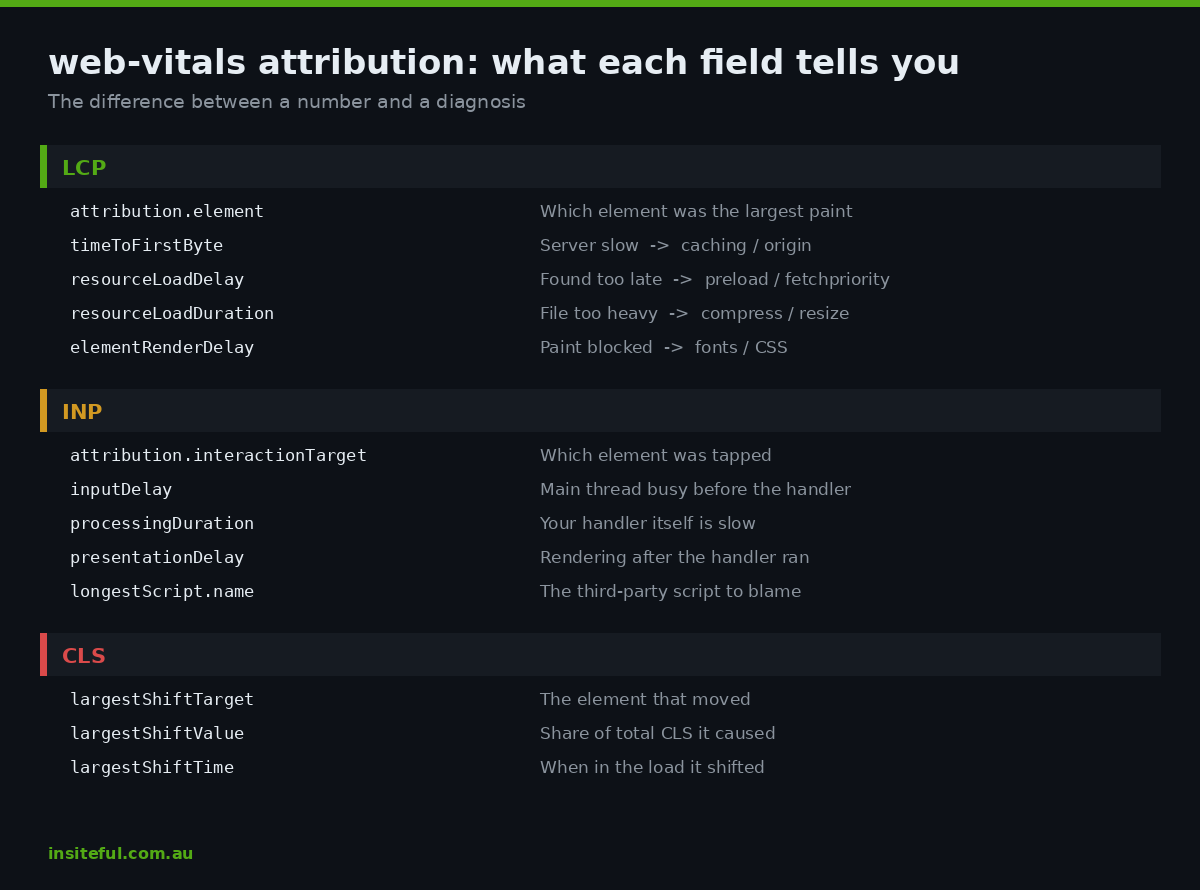
For LCP, you get the element selector plus a four-part breakdown: time to first byte, resource load delay, resource load duration, and element render delay. That breakdown is the entire diagnosis. If load delay dominates, your hero image is being discovered too late and needs a preload or a priority hint. If load duration dominates, the image is too heavy and belongs in an image optimisation pass. If render delay dominates, something is blocking paint, usually a font or a render-blocking stylesheet. Three completely different fixes, and the lab score cannot distinguish between them.
For INP, version 5 of the library extended attribution with Long Animation Frame data, including the longest script and a breakdown into buckets. You get the element that was interacted with, the event type, and the split between input delay, processing duration and presentation delay. In practice this is how you identify the app that is wrecking your responsiveness. When the longest script consistently resolves to a third-party bundle, you have your answer without needing to bisect your app list, and the remediation work follows the same path we set out in our guide to fixing INP on Shopify.
For CLS, you get the largest shift source, which is the element that moved. Almost always this resolves to an unreserved image, a late-injected banner, or a font swap.
One more capability landed recently that matters for anyone running a heavily interactive theme: from Chrome 151 the browser can report Core Web Vitals separately for soft navigations. If your theme uses the Section Rendering API to swap collection results without a full page load, those interactions were previously invisible. They are now measurable.
The dimensions that make the data useful
Collecting the metrics is the easy half. The value is entirely in what you attach to them, and this is where most in-house attempts fall down. A single site-wide LCP number is barely more useful than the CrUX number you already had.
The dimensions we attach as standard:
- Template —
index,product,collection,cart,search,page. This is the highest-value split by a wide margin. Homepages are almost always the fastest template on a Shopify store and almost never where the money is. - Handle — for product and collection templates. This is how you find the one collection with 400 unpaginated products that is quietly destroying your mobile numbers.
- Browser and viewport — the Safari versus Chrome comparison that CrUX cannot give you.
- Effective connection type —
4g,3g,slow-2g. Regional Australian traffic behaves very differently from metro traffic, and if you have customers outside the capital cities you need to see them separately rather than averaged away. - Navigation type — so bfcache restores can be excluded from the headline figure.
- Deploy or theme version — so a regression can be tied to a specific release rather than argued about.
That last one is the difference between monitoring and merely measuring. Attach the theme version to every beacon and you can answer “did that change make things worse” in an afternoon instead of waiting a month for CrUX to catch up.
Where to send the data
There are three sensible destinations, and the right one depends on how much you want to spend and how far you want to dig.
GA4 is the cheapest starting point. Send each metric as a custom event with the dimensions as event parameters. It costs nothing, it is already installed, and you can build a Looker Studio view on top of it in an hour. The catch is cardinality limits and GA4’s sampling behaviour, which make percentile analysis unreliable once you are past moderate traffic. It is fine for direction, poor for precision.
An App Proxy endpoint is the middle path and what we use most often. A Shopify App Proxy lets you expose a route under your own domain, which keeps the beacon first-party and avoids every ad-blocker and tracking-prevention issue that comes with posting to a third-party host. First-party is not a nice-to-have here. Intelligent Tracking Prevention in Safari is precisely the audience you were trying to measure, so a third-party endpoint loses exactly the data you built the system for.
// Minimal collector behind a Shopify App Proxy route
export async function action({request}) {
  const raw = await request.text();
  const evt = JSON.parse(raw);

  if (!['LCP', 'INP', 'CLS', 'TTFB'].includes(evt.name)) {
    return new Response(null, {status: 204});
  }

  await db.insert('vitals', {
    ts: new Date(),
    metric: evt.name,
    value: evt.value,
    rating: evt.rating,
    template: evt.template,
    handle: evt.handle,
    viewport: evt.viewport,
    conn: evt.conn,
    nav_type: evt.navType,
    lcp_element: evt.attribution?.element || null,
    inp_script: evt.attribution?.longestScript?.name || null,
    shift_source: evt.attribution?.largestShiftTarget || null
  });

  return new Response(null, {status: 204});
}
A commercial RUM product is the third option. If you would rather not run a collector, the tooling is mature and the analysis is better than anything you will build in a fortnight. Budget somewhere in the range of $1,200 to $6,000 AUD per year depending on traffic volume. For a store doing under about 200,000 sessions a month, the App Proxy route usually costs less to run than the subscription and gives you raw rows you can join against your own order data.
Reading it properly
Once data is flowing, the analysis discipline matters as much as the collection.
Always use p75, never the average. Performance distributions have long tails. A mean LCP of 2.3 seconds can hide a p75 of 4.1 seconds, and Google grades you on the second number. Compute it the way CrUX does or you are optimising against a metric nobody uses.
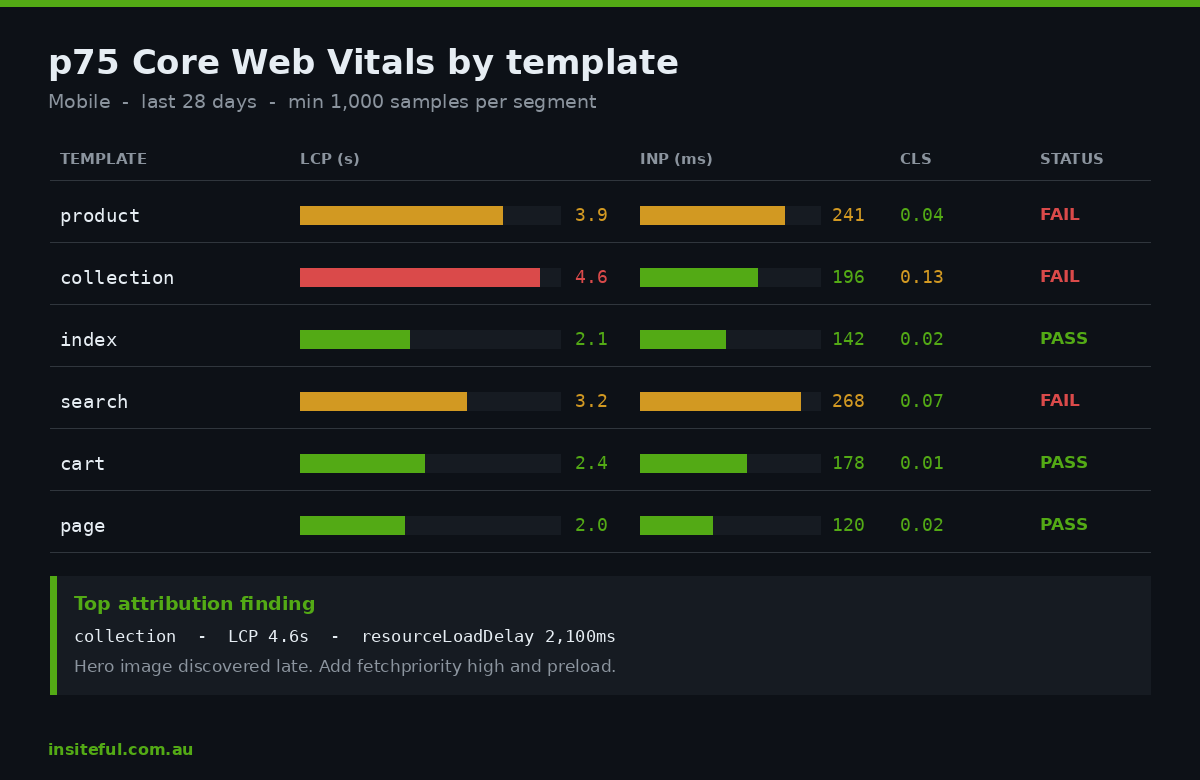
Segment before you conclude. Site-wide numbers tell you nothing actionable. The first cut is always template, the second is device, the third is browser. Roughly two-thirds of the performance problems we find are confined to one template, which means the fix is scoped and cheap rather than a full-site rebuild.
Set a minimum sample. Do not draw conclusions from a template with forty data points. We use 1,000 measurements per segment before treating a p75 as stable, which for most Australian mid-market stores means daily numbers for product and collection, and weekly for search and cart.
Watch the trend, not the snapshot. The point of owning the data is that you see a regression the day it ships. A single reading tells you where you are. The line tells you whether the last three months of work did anything.
Reconcile against CrUX monthly. Your RUM numbers should track CrUX’s direction even if the absolute values differ, because you are measuring a wider audience. If they diverge sharply, something is wrong with your collection, usually a beacon that is being dropped or a segment that is over-represented.
What we find when we turn it on
Across the Shopify builds where we have installed this, the same handful of findings come up often enough to be worth naming.
The homepage is fine and nobody enters through it. The template most merchants test is usually the fastest one they own and typically accounts for a modest share of entries. Paid and organic traffic lands on product and collection pages, which are heavier, more app-dependent, and almost never tested.
One collection is doing most of the damage. A sale or clearance collection with several hundred products and no pagination limit will produce an LCP two to three times worse than the site’s other collections. It is invisible in an origin-level number and obvious the moment you split by handle.
Safari is materially slower and nobody knew. Because CrUX cannot see it, this gap survives indefinitely on stores that only look at Search Console.
INP is a third-party problem far more often than a theme problem. When attribution consistently names the same external script, the conversation stops being about code and starts being about whether that app earns its place. We have seen a single review widget account for the majority of a store’s INP failures.
Regional connection quality is a real segment. Merchants with meaningful non-metro Australian traffic often find a materially worse experience there, and it is worth deciding deliberately whether to optimise for it rather than discovering it by accident.
The mistakes worth avoiding
A short list of things that have cost people weeks.
- Putting the collector in a custom pixel. Covered above. It reports on the sandbox, not the page, and the numbers look plausible.
- Using fetch instead of sendBeacon. You lose the slowest sessions, which biases your data optimistic in exactly the wrong direction.
- Posting to a third-party domain. Tracking prevention and ad blockers strip a meaningful share of it, and the share they strip is not random.
- Shipping the standard build instead of the attribution build. You end up with numbers and no diagnosis, which is where you started.
- Reporting averages. Every performance target Google publishes is a p75. Report anything else and you are measuring a different thing.
- Leaving bfcache restores in the headline number. They are legitimately fast and they flatter you into thinking a problem is fixed.
- Instrumenting without a budget. Data with no threshold produces dashboards nobody opens. Pair this with a written performance budget per template so a regression triggers something.
How we do it at Insiteful
Real user monitoring goes into every Shopify build we ship, and it goes in during the build rather than after launch. The reason is practical: if the collector is live on the old site for a fortnight before cutover, we have a genuine before-and-after on the same audience, on the same devices, on the same templates. Without that, a replatform’s performance claim is just a pair of Lighthouse screenshots.
Our standard install is the attribution build loaded from a theme snippet, beaconing to an App Proxy endpoint on the merchant’s own domain, with template, handle, viewport, browser, connection type, navigation type and theme version attached to every event. It adds roughly 3KB to the page, deferred, and has never been the cause of a performance problem on a store we have built.
We pair it with a written performance budget per template, because monitoring without a threshold is just decoration. Product template LCP has a number. Collection template INP has a number. When a deploy pushes a template past its budget, it is caught in the same week rather than surfacing in Search Console a month later when nobody remembers what shipped.
The reporting cadence is monthly, in plain English, with a p75 per template split by device and browser, the top three attribution findings, and a recommendation attached to each. If an app is responsible, we say which app and what it costs you. Twenty-five years of building for retailers has taught us that a performance report nobody can act on is worth nothing, so the deliverable is always a decision, not a dashboard.
For merchants who are not building with us, the honest advice is that this is a one to two day job for a competent Shopify developer and it is the highest-leverage two days you will spend on performance. Everything else in optimisation is guessing until you can see what your customers actually experienced.
Where to start
If you do nothing else from this article, do these three things in order.
Install the attribution build in your theme this week and point it at GA4. It costs nothing and it takes an afternoon. Give it a fortnight to accumulate.
Then split your first report by template and device only. Ignore everything else. You are looking for the one template where the p75 is materially worse than the rest, because that is where your money is leaking.
Then read the attribution on that template. The element, the longest script, the shift source. That will tell you what to fix, and it will almost certainly be one thing rather than twenty.
The stores that get performance right are not the ones with the best lab scores. They are the ones that stopped guessing.
If you would rather have this built properly as part of a Shopify store that is engineered to convert, start with a build assessment and we will show you exactly where your current site is losing revenue.