

The storefront is the smallest surface your brand appears on.
By the time an Australian DTC brand is doing real volume, its logo is rendering in at least nine places: the theme header, the checkout, order confirmation emails, the Shop app profile, Google Shopping listings, the browser tab, link previews pasted into Instagram DMs and Slack, packing slips, and whatever review or loyalty app is embedded on the product page. Most of those surfaces never touch the theme. They pull from somewhere else entirely. And on the majority of stores we audit, that somewhere else is a JPEG somebody uploaded in 2023 and forgot about.
This is the quiet failure mode of a good rebrand. The homepage looks immaculate. The share preview is a 2000 by 2000 packshot cropped into a sliver of product floating on white. The favicon is a wordmark squeezed to 32 pixels, which reads as a grey smudge. The Shop app profile has no cover image at all. None of it shows up in a design review because none of it lives in the theme editor.
Shopify has actually solved a decent chunk of this with the Brand API, and almost nobody uses it properly. This is how we set it up on every Insiteful build, what it does and does not cover, and the snippets we ship to close the gaps it leaves.
Where your brand actually renders
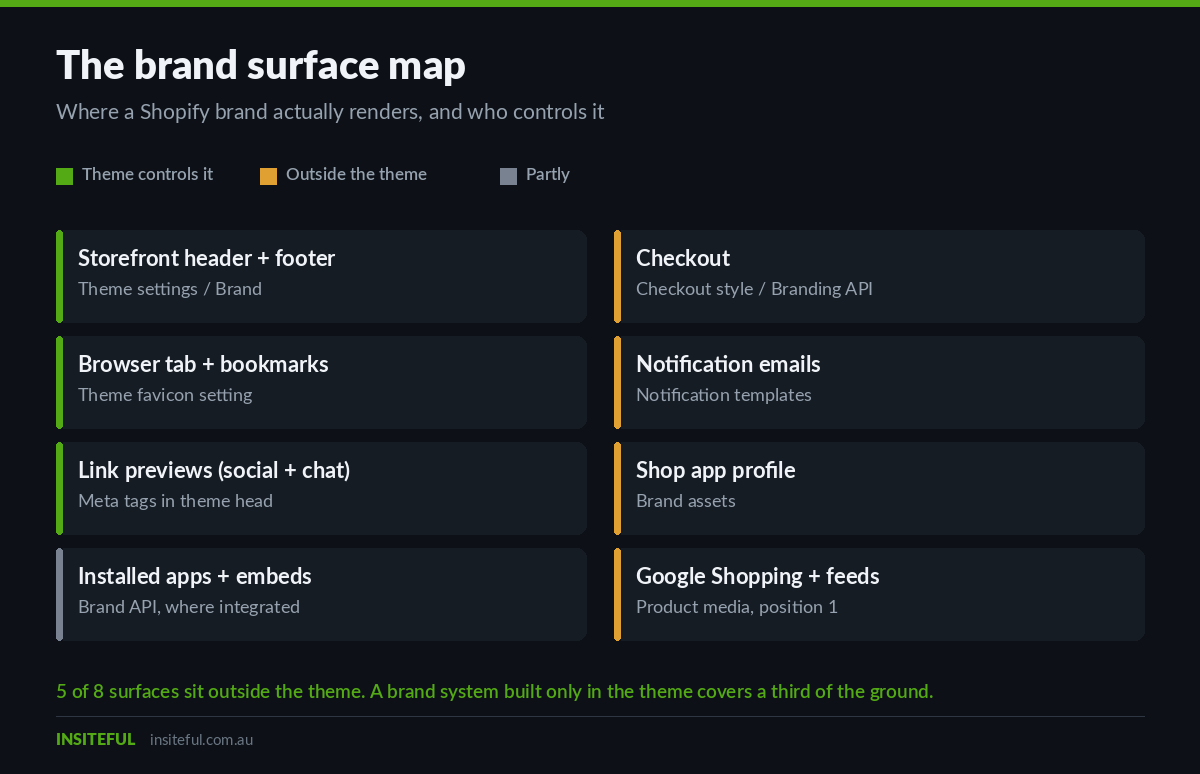
Before touching any settings, we map the surfaces. The point of the map is to make visible which surfaces the theme controls and which ones it does not, because that boundary is where brand consistency breaks.
| Surface | Pulls brand from | Theme controls it? |
|---|---|---|
| Storefront header and footer | Theme settings, or Brand via dynamic source | Yes |
| Browser tab and bookmarks | Theme favicon setting | Yes |
| Link previews on social and chat | Meta tags in the theme head | Yes |
| Checkout | Checkout style settings, Branding API on Plus | No |
| Notification emails | Notification template settings | No |
| Shop app store profile | Brand assets | No |
| Google Shopping and marketplace feeds | Product media, position one | No |
| Installed apps and embeds | Brand API where the app has integrated | Partly |
Five of the eight sit outside the theme. That is the number worth internalising. A brand system that lives only in settings_schema.json is covering roughly a third of the ground.
What the Brand API actually is
Shopify stores a set of brand assets centrally, in the admin under Settings, then General, then Brand assets, then Manage. Anything you put there is available to every sales channel, app and theme that has integrated with the Brand API, and it is applied as a default automatically. The admin page lists which of your installed channels and apps are wired to it, which is worth checking before you assume coverage.
On the theme side it surfaces as the shop.brand object in Liquid, with these properties:
logo– the default logo, used for most general applicationssquare_logo– required for social channels and profile pictures, and may be cropped to a circlecover_image– a key brand image used on profile pages and in appsfavicon_url– the square logo resized to 32 by 32 pixelscolors– primary, secondary and contrasting values, accessed through thebrand_colorobjectsloganandshort_description– the text pair used in bios and listingsmetafields.social_links– Facebook, Instagram, Pinterest, TikTok, Tumblr, Snapchat and Vimeo
Reading them is straightforward, and this is the pattern we use in the footer and in any brand block a merchandiser can drop into a page:
{% if shop.brand.square_logo %}
  <img
    src="{{ shop.brand.square_logo | image_url: width: 512 }}"
    alt="{{ shop.name | escape }}"
    width="512" height="512" loading="lazy">
{% endif %}

{% if shop.brand.slogan != blank %}
  <p class="brand__slogan">{{ shop.brand.slogan }}</p>
{% endif %}

{% assign ig = shop.brand.metafields.social_links.instagram.value %}
{% if ig != blank %}
  <a href="{{ ig }}" rel="me noopener">Instagram</a>
{% endif %}
The practical benefit is not the syntax. It is that a merchandiser updating the logo in one admin screen updates the header, the footer brand block, the Shop app profile and every Brand-integrated app at once, instead of four people updating four systems over three weeks.
The asset spec sheet we hand over
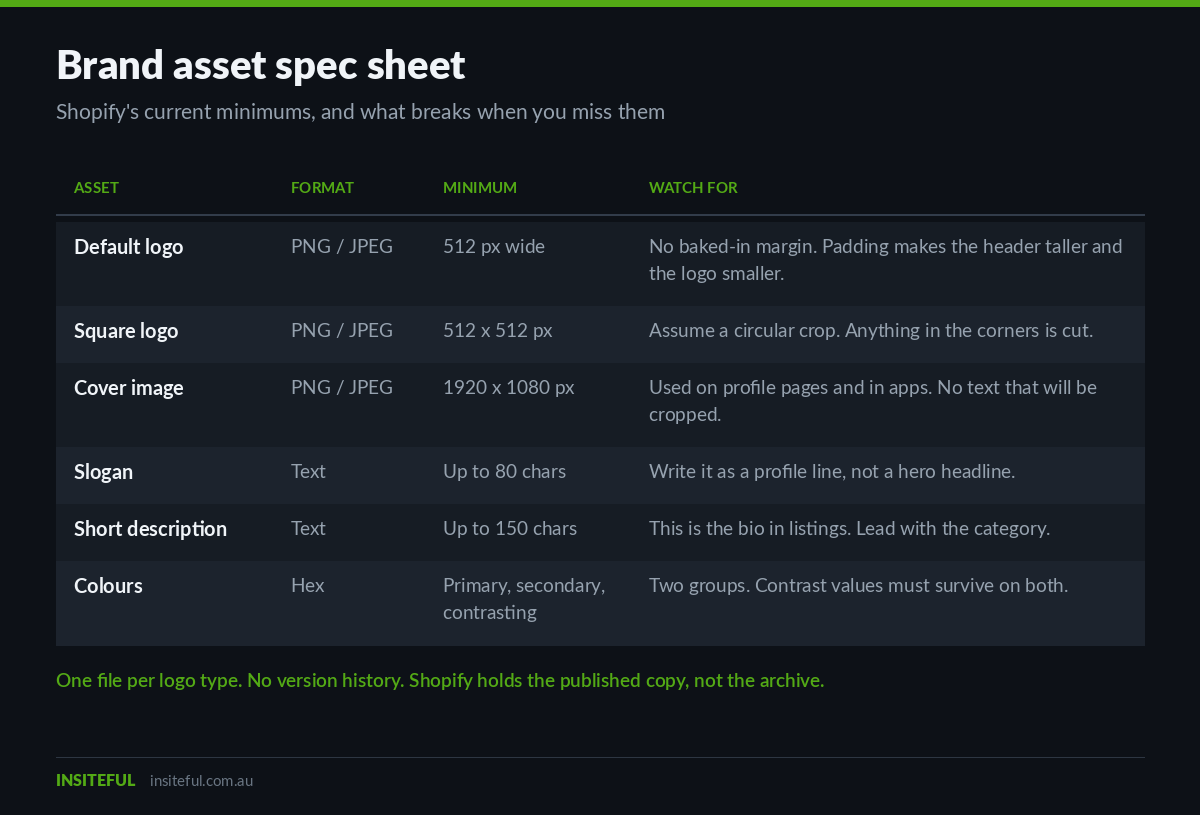
Shopify enforces minimums, and it will reject a file that misses them, so we give clients a spec sheet before the design files are exported rather than after. These are the current requirements.
| Asset | Format | Minimum | Watch for |
|---|---|---|---|
| Default logo | PNG or JPEG | 512 px wide | No baked-in margin. Padding in the file makes the header taller and the logo smaller. |
| Square logo | PNG or JPEG | 512 by 512 px | Assume a circular crop. Anything in the corners will be cut. |
| Cover image | PNG or JPEG | 1920 by 1080 px | Used in profile pages and apps, so no text that will be cropped. |
| Slogan | Text | Up to 80 characters | Write it for a profile line, not a hero headline. |
| Short description | Text | Up to 150 characters | This is the bio that appears in listings. Lead with the category. |
| Colours | Hex | Primary, secondary, contrasting | Two groups. Contrast values need to survive on both. |
Three gotchas that catch teams out, all of which we design around rather than discover later.
Brand assets cannot be localised. There is one file per logo type, full stop. If a brand runs a modified wordmark for a particular market, brand assets will not carry it. Those logos have to be uploaded in theme settings and localised with the Translate and Adapt app instead. Any client running multiple markets gets this flagged in scoping, because it changes how the header is built.
Vintage and some custom themes are not compatible. On a compatible theme the assets should populate automatically. Where they do not, you connect them manually in the theme editor under Theme settings, then Logo, then Connect dynamic source. On an older custom theme, that binding has to be written in.
There is no version history. One file per logo type, overwritten in place. Shopify is the published copy, not the archive. The master lives in the design system file and the asset library, and the Shopify entry is treated as a deployment target.
Link previews: the surface almost every build gets wrong
Paste a product URL into a customer’s DM, a Slack channel, a WhatsApp group or a LinkedIn post and the platform builds a card from your Open Graph tags. That card is often the first visual impression a new customer gets, and it is generated by code most themes never revisit after install.
The working spec has been stable for years. 1200 by 630 pixels, a 1.91 to 1 ratio, which renders correctly on Facebook, X, LinkedIn, Slack, Discord, WhatsApp, iMessage and effectively every other card builder. Keep the meaningful content inside the centre two thirds with roughly 60 to 80 pixels of padding, because each platform crops the edges slightly differently. Keep the file small: WhatsApp soft-caps around 300KB and quietly degrades anything larger, and under 150KB is a safer target even though Meta will accept files up to 8MB.
It matters commercially. Analyses of link sharing put the difference between an optimised preview image and a missing or broken one at roughly 40 to 50 percent of social click-through, with some platform-level studies showing two to three times the engagement on posts with a properly configured card versus one without.
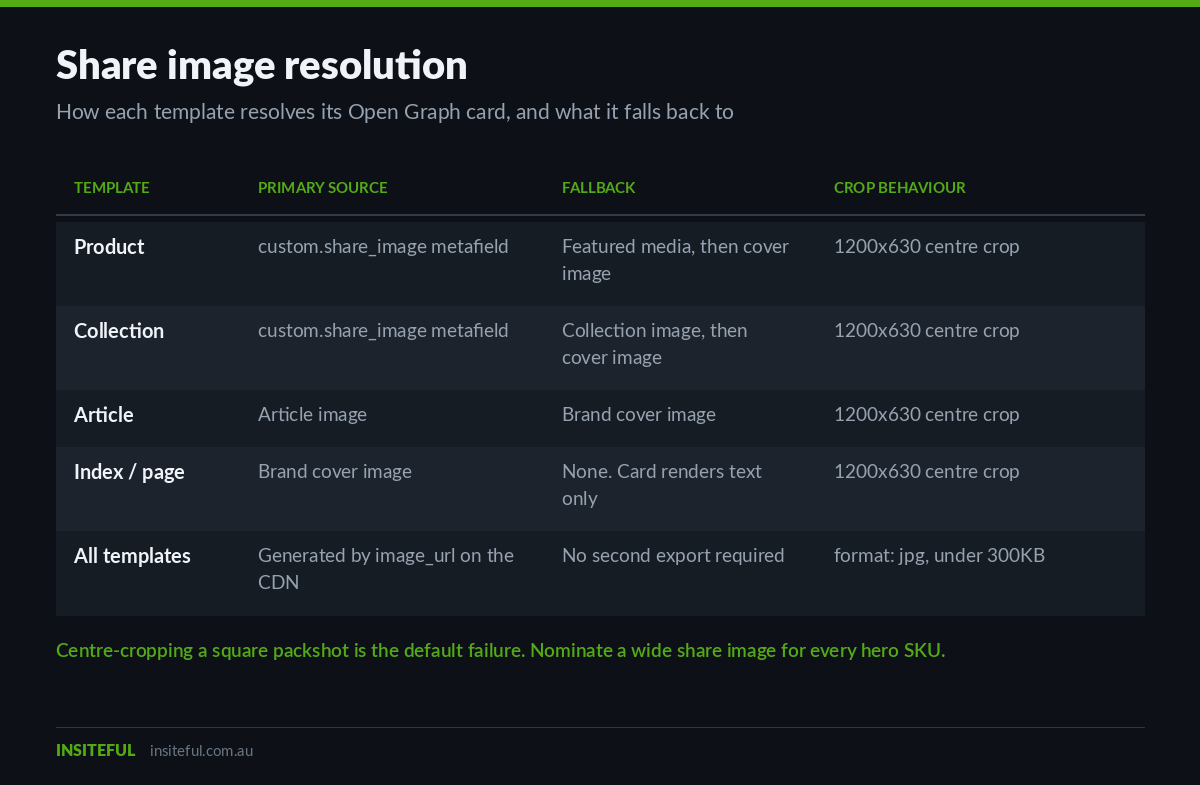
The default behaviour on most themes is to hand Open Graph the product’s featured image. For a brand shooting on white, that means a 2000 by 2000 square packshot centre-cropped to 1.91 to 1, which throws away the top and bottom of the product and produces a preview that is mostly empty background. It is technically correct and commercially useless.
We ship a template-aware snippet with a dedicated share-image override, so merchandising can nominate a proper wide crop per product without touching code:
{%- liquid
  assign og = shop.brand.cover_image

  if template.name == 'product'
    assign og = product.metafields.custom.share_image.value
      | default: product.featured_media.preview_image
  elsif template.name == 'article'
    assign og = article.image | default: og
  elsif template.name == 'collection'
    assign og = collection.metafields.custom.share_image.value
      | default: collection.image
      | default: og
  endif
-%}

{%- if og -%}
  <meta property="og:image"
    content="https:{{ og | image_url: width: 1200, height: 630, crop: 'center', format: 'jpg' }}">
  <meta property="og:image:width" content="1200">
  <meta property="og:image:height" content="630">
  <meta name="twitter:card" content="summary_large_image">
{%- endif -%}
Two details in there earn their keep. The image_url filter is doing the resize and the crop on Shopify’s CDN, so no one is exporting and uploading a second set of files. And Shopify’s asset URLs are protocol-relative, so the scheme has to be prepended or a share card will silently fail to render on some crawlers.
The metafield override is the part clients notice. It turns the share image into a merchandising decision that sits alongside the product photography rather than a developer ticket. We define it as a file-reference metafield and expose it in the product admin, which is the same pattern we use for structured brand content elsewhere, covered in our piece on building with metaobjects.
The browser tab is a brand surface too
The shop.brand.favicon_url property returns the square logo resized to 32 by 32 pixels. As a fallback that is fine. As a strategy it fails, because a full wordmark reduced to 32 pixels is a horizontal grey smear that identifies nothing in a row of 14 open tabs.
A favicon is a separate design deliverable. It should be one glyph, one or two colours, tested at 16 pixels before it is signed off, not the logo scaled down. On Insiteful builds the mark is designed at 16 and 32 pixels first and only then rendered up, which is the reverse of how most brand books approach it.
The head block we ship covers the icon set properly rather than relying on a single legacy file:
<link rel="icon" href="{{ 'favicon.svg' | asset_url }}" type="image/svg+xml">
<link rel="icon" href="{{ 'favicon-32.png' | asset_url }}" sizes="32x32">
<link rel="apple-touch-icon" href="{{ 'apple-touch-icon-180.png' | asset_url }}">
<link rel="manifest" href="{{ 'site.webmanifest' | asset_url }}">
<meta name="theme-color" content="{{ settings.colors_background_1 }}">
The theme-color tag is the one people skip. It sets the browser chrome colour on mobile, which on a phone is a visible band of colour sitting directly above your site. Bound to a theme setting, it tracks the palette automatically rather than drifting the first time the background changes. That binding is the same discipline we apply across the whole palette in our write-up on Shopify colour schemes.
Feed surfaces, where brand furniture becomes a liability
Everywhere else on this list, more brand is better. In product feeds the opposite is true, and the rules are about to tighten.
Google Merchant Center is moving to a minimum image resolution of 500 by 500 pixels for the primary and additional image attributes across every product category. Warnings begin from 14 April 2026 and enforcement follows on 31 January 2027. The practical recommendation sits far above the floor: 1500 by 1500 pixels or larger holds up across every Shopping surface, and 2000 by 2000 gives you headroom.
The harder constraint is what you are not allowed to put on the image. Watermarks, promotional overlays, price stickers, sale badges, free shipping flashes and decorative borders all trigger disapproval. Industry analyses attribute roughly 65 percent of all Merchant Center product disapprovals to image issues, with promotional overlays the single most common violation.
That collides directly with how a lot of brand teams work. The branded frame, the corner logo lockup, the campaign badge – all of it is fine on Instagram and fatal in a feed. The build rule we enforce is simple and it lives in the media guidelines, not in code:
- Position one in Shopify product media is always a clean packshot. No frame, no overlay, no logo, no text.
- Branded, lifestyle and campaign frames start at position two, where the storefront gallery uses them and the feed does not.
- Master files are uploaded at 2000 by 2000 minimum and everything downstream is generated by the CDN, never by a second export.
That last point is what makes it maintainable. Shopify’s image_url filter takes width, height, crop, format and quality parameters and does the work per request, with format: 'auto' negotiating AVIF or WebP against the browser’s Accept header. One high-resolution master, every derivative generated on demand. We go into the performance side of that in detail in our guide to Shopify image optimisation.
Making the machines agree with the humans
The last surface is the one nobody looks at: what search engines and AI assistants believe your brand looks like. If the logo in your structured data is a stale file, that is the logo that ends up in a knowledge panel or a generated summary, regardless of what the site header shows.
Because the brand assets are already centralised, the structured data can be generated from them rather than hardcoded, which means it can never drift out of sync:
<script type="application/ld+json">
{
  "@context": "https://schema.org",
  "@type": "Organization",
  "name": {{ shop.name | json }},
  "url": {{ shop.url | json }},
  {%- if shop.brand.square_logo %}
  "logo": {{ shop.brand.square_logo | image_url: width: 512 | prepend: 'https:' | json }},
  {%- endif %}
  {%- if shop.brand.short_description != blank %}
  "description": {{ shop.brand.short_description | json }},
  {%- endif %}
  "sameAs": [
    {{ shop.brand.metafields.social_links.instagram.value | json }},
    {{ shop.brand.metafields.social_links.facebook.value | json }}
  ]
}
</script>
The json filter is not decoration. Brand names and descriptions routinely contain apostrophes, ampersands and quotation marks, and an unescaped one produces invalid JSON-LD that fails silently in every validator the client will never run.
Governance, or what happens six months after launch
Every failure we have described is a governance failure wearing a design costume. The assets were correct on launch day. Then a campaign shipped, a new app was installed, someone updated the header logo and nothing else, and the system drifted.
Centralising into brand assets removes a large slice of that drift by design, because several surfaces now read from one record. What it does not solve is ownership, and that has to be written down.
The rollout checklist we hand over covers twelve surfaces, in this order, because each one has a different owner and a different lead time:
- Brand assets record in admin: default logo, square logo, cover image, colours, slogan, description
- Theme settings logo, bound to dynamic source where the theme supports it
- Favicon set: SVG, 32 pixel PNG, 180 pixel Apple touch icon, web manifest
- Open Graph and Twitter card defaults, plus the per-template fallback chain
- Per-product and per-collection share image metafields for hero SKUs
- Checkout logo and accent colours
- Notification email template logo and colour block
- Shop app profile assets
- Product media position one audit against feed rules
- Organization structured data, generated from brand assets
- Theme colour meta tag and mobile browser chrome
- Any Brand-integrated app that has cached an older asset
Item twelve is the one that bites. Apps integrated with the Brand API take the assets as a default, but an app that was configured before the update may still be holding the previous file. Every rebrand rollout we run ends with an app-by-app visual pass, because there is no global cache-clear for this.
The commercial case for doing it as a system rather than a cleanup is not subtle. Retro-fitting a rebrand across the twelve surfaces above on a mid-size Shopify store is typically 30 to 60 hours once you include the design work for the favicon mark and the share images, the Liquid changes, the feed audit and the app-by-app pass. At Australian agency rates that is somewhere between $6,000 and $14,000 AUD of work that a properly structured brand layer would have absorbed in an afternoon. On builds in our usual $8,500 to $25,000 AUD range, that is a meaningful fraction of a whole engagement spent re-doing something that was never architected.
The ten-point brand surface audit
This is the check we run on every inherited store before we quote, and it takes about 40 minutes. It is worth running on your own store this week.
| # | Check | Fail looks like |
|---|---|---|
| 1 | Brand assets record populated | Empty, or a logo with baked-in padding |
| 2 | Square logo survives a circular crop | Wordmark clipped at both ends |
| 3 | Favicon legible at 16 pixels | Scaled-down wordmark, unreadable |
| 4 | Home page share card | Missing image, or the hero banner cropped through the headline |
| 5 | Product share card | Packshot centre-cropped into empty white space |
| 6 | Article share card | Falls back to the store logo on every post |
| 7 | Share image file weight | Over 300KB, degraded by chat clients |
| 8 | Product media position one | Carries a badge, frame, watermark or price text |
| 9 | Feed image resolution | Under 500 by 500 pixels, non-compliant from 2027 |
| 10 | Organization structured data logo | Hardcoded path to a file replaced two rebrands ago |
In our experience, a store that has never had this done deliberately fails between four and seven of the ten. Checks four to seven fail most often, because nothing in the Shopify admin ever shows them to you.
How We Do It at Insiteful
Brand assets are not a launch-week task on our builds. They sit in the same workstream as the design system, and they get the same treatment: defined once, bound to a source, documented on handover.
In practice that means four things.
We design the small marks first. The favicon glyph and the square logo are drawn and approved at their real display sizes before the full lockup is finalised, not derived from it afterwards. A wordmark that cannot survive a circular crop and a 16 pixel render is an incomplete brand system, and it is far cheaper to find that out in Figma than in production.
We bind rather than upload. Every surface that can read from the brand record does. Theme logos use dynamic sources where the theme supports it, structured data is generated from shop.brand, and the browser chrome colour is bound to a theme setting rather than typed in as a hex value. The same principle drives our approach to design tokens and typography loading: one definition, many consumers, no copies.
We treat the share card as a designed asset. Hero products and every collection landing page get a purpose-built 1200 by 630 share image with the subject positioned for the centre crop, delivered as a metafield the merchandising team controls. It is a small amount of design work that changes how the brand looks in every DM, group chat and Slack channel a customer ever pastes a link into.
We hand over the checklist, not just the build. The twelve-surface rollout list and the ten-point audit above ship with the documentation, so the next campaign, the next app install and the next rebrand have a defined path. Clients who run the audit quarterly stay clean. Clients who do not are the ones we quote a retrofit for eighteen months later.
None of this is exotic engineering. It is a handful of Liquid snippets, one admin screen filled in properly and a design decision made two weeks earlier than usual. The reason it is rare is that no single person on most teams owns all twelve surfaces, so each one is somebody else’s problem until all of them are wrong at once.
Where to start
If you only do one thing after reading this, paste your own home page and your best-selling product URL into a Slack channel or a WhatsApp group and look at what comes back. That single test surfaces checks four through seven in about thirty seconds, and it is the surface your customers see most often and your team audits least.
Then fill in the brand assets record properly. It is one admin screen, it takes twenty minutes with the right files, and it quietly corrects a set of surfaces you cannot otherwise reach without a developer.
If you would rather have the whole brand layer architected and documented as part of a build, that is exactly the kind of work we scope in our build assessment. We will run the ten-point audit on your store, show you which surfaces are drifting and what it takes to bring them back onto one source of truth.