
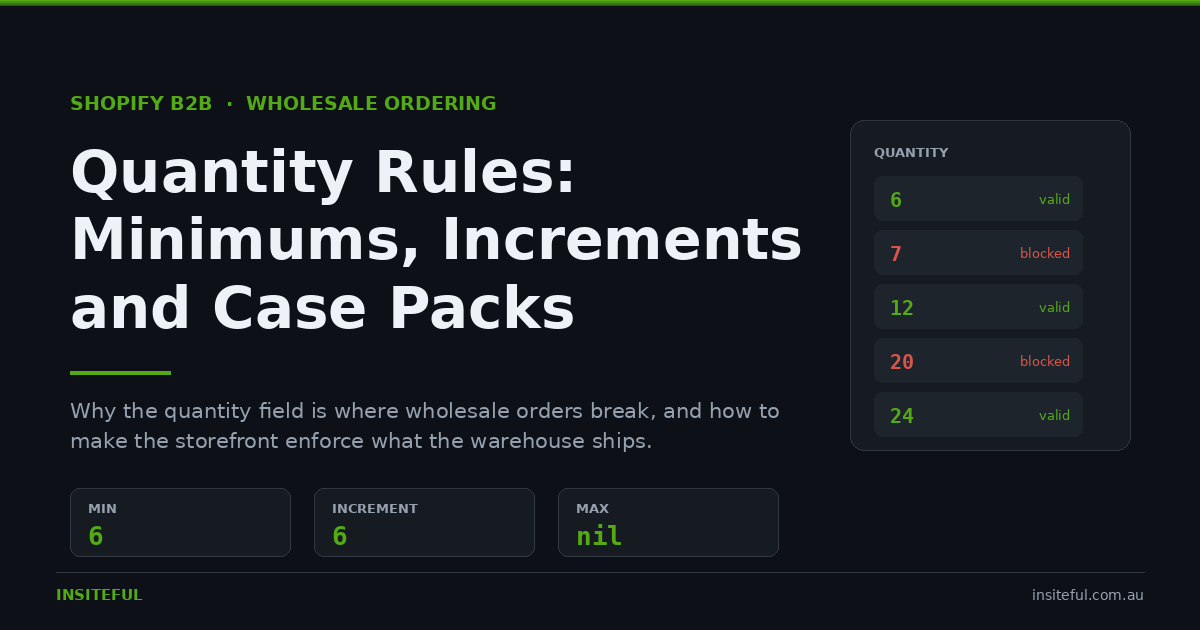
Wholesale ordering breaks in a very specific place. Not at the catalogue, not at the price list, and usually not at payment. It breaks at the quantity field.
A buyer opens your B2B store, finds the product, types 7 into the quantity box and adds to cart. Your warehouse ships that SKU in cartons of six. Someone now has to ring the buyer, agree on 6 or 12, edit the order and reissue the confirmation. Multiply that across a few hundred orders a month and you have quietly rebuilt the phone-and-spreadsheet process you moved to Shopify B2B to escape.
Shopify’s quantity rules exist to stop exactly that. On the surface they are simple: a minimum, a maximum and an increment. They are also the feature we most often find configured halfway, applied at the wrong level, or invisible on the storefront until checkout rejects the cart with no explanation.
The commercial context matters here. The global B2B ecommerce market is estimated at $32.11 trillion in 2025 and heading toward $36.16 trillion in 2026, and roughly 83% of B2B purchasers now say they prefer self-service ordering over placing an order through a rep. Self-service only works when the store enforces the same rules a good rep would have enforced on the phone. Every order that needs a human to correct it is a self-service order that failed.
This article covers what quantity rules actually do, the three places they stop short, and how we implement them on Australian wholesale builds.
The Three Levers Shopify Gives You
Quantity rules live on B2B catalogs, not on the product itself. You set them in your Shopify admin under Markets, then Catalogs, then Products and pricing, or you import them in bulk by CSV. That distinction matters more than it first appears, and we come back to it when we look at catalog limits.
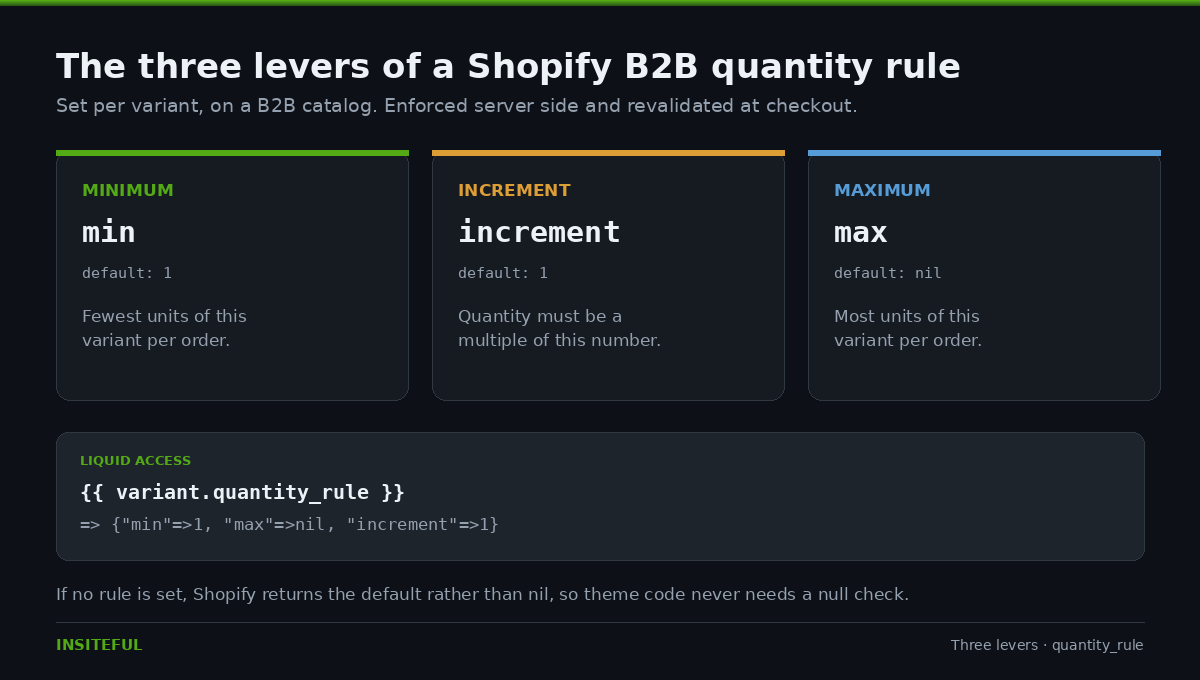
There are exactly three levers, and every wholesale ordering rule you want to express has to be built out of them.
| Lever | What it does | Default | Constraint |
|---|---|---|---|
| Minimum | Fewest units of that variant per order | 1 | Positive whole number |
| Maximum | Most units of that variant per order | None (nil) | Optional, can be set alone or with a minimum |
| Increment | Quantity must be a multiple of this number | 1 | Positive whole number of 1 or more |
On the storefront these surface through the quantity_rule Liquid object, which hangs off the variant rather than the product. If no rule has been set, Shopify returns the default rather than nothing, which is useful because your theme code never has to null-check.
{{ product.selected_or_first_available_variant.quantity_rule }}
{# => {"min"=>1, "max"=>nil, "increment"=>1} #}

{{ product.selected_or_first_available_variant.quantity_rule.min }}
{{ product.selected_or_first_available_variant.quantity_rule.max }}
{{ product.selected_or_first_available_variant.quantity_rule.increment }}
The rules are enforced server side. Shopify applies them to line items and then revalidates them at checkout, so a buyer cannot add a valid quantity, manipulate the cart and slip an invalid one through. That is the part people underestimate: quantity rules are a hard constraint on the order, not a suggestion rendered in the theme.
The Variant Trap That Breaks Size Runs
This is the single most common misconfiguration we find on Australian wholesale stores, and it comes from a reasonable assumption that turns out to be wrong.
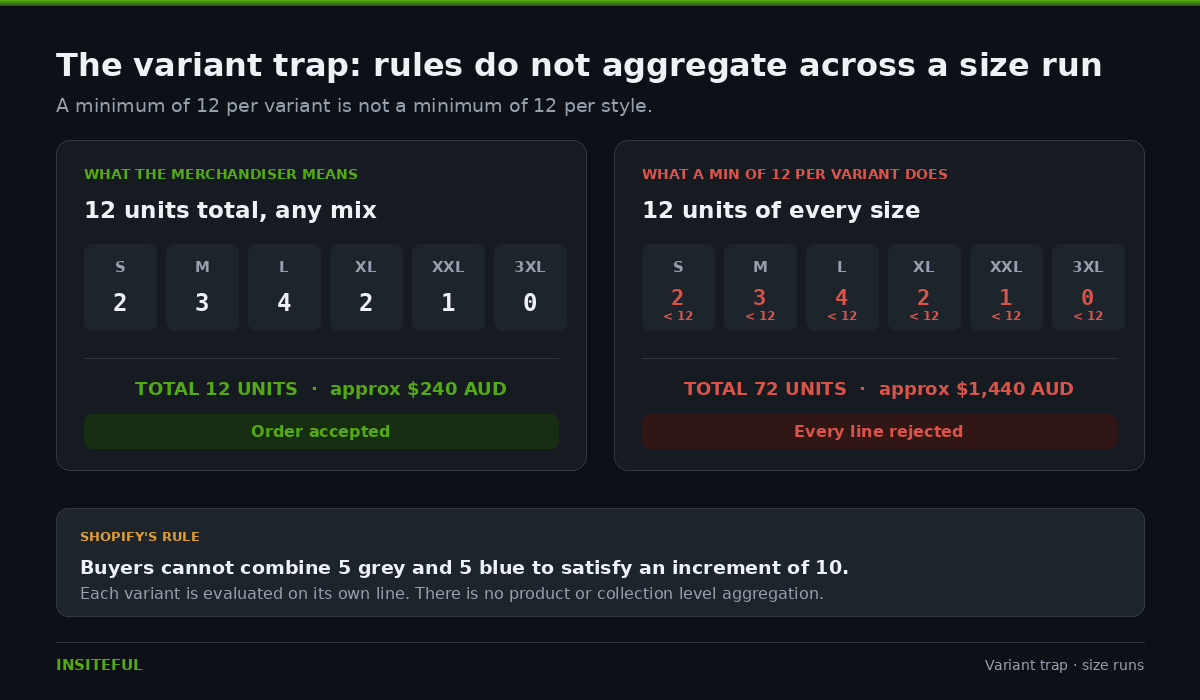
Quantity rules apply to variants, not products. Shopify’s documentation is unambiguous about the consequence: if you sell a hat in blue and grey and set an increment of 10 on each, a buyer cannot combine 5 grey and 5 blue to reach 10. Each variant is evaluated on its own line, independently.
For apparel and footwear wholesalers this quietly wrecks the ordering model. Consider a t-shirt with a six-size run and a merchandiser who wants a minimum of 12 units per style.
| What the merchandiser means | What a min of 12 per variant actually does |
|---|---|
| 12 units total across S to 3XL, any mix | 12 units of S, plus 12 of M, plus 12 of L, and so on |
| Realistic order: 2S, 3M, 4L, 2XL, 1XXL | Rejected. Every line is below its own minimum |
| Minimum spend implied: roughly $240 AUD | Minimum spend enforced: roughly $1,440 AUD |
The buyer does not get a helpful message explaining this. They get a product page that will not let them order the size run they actually sell. In our experience they do not raise a support ticket, they email the rep, and you are back to manual order entry.
If what you genuinely want is “any 12 units across the size run”, quantity rules cannot express it, because there is no product-level or collection-level aggregation. You have two real options, and we cover both below: model the pack as its own SKU, or enforce the aggregate with a validation function.
Case Packs: Model the Carton, Not the Unit
Most wholesale minimum-quantity problems are really packaging problems. The warehouse does not pick 7 units, it picks cartons. So the cleanest builds make the carton visible in the data model rather than trying to simulate it with arithmetic.
There are two viable patterns and they are not interchangeable.
| Increment on the unit SKU | Carton as its own SKU | |
|---|---|---|
| Buyer sees | Quantity in eaches, stepped by 6 | Quantity in cartons |
| Inventory tracked in | Eaches | Cartons (or eaches via a bundle app) |
| Retail store sells same SKU | Yes, rules only apply to the B2B catalog | No, needs a separate product |
| Mixed size runs per carton | Not possible | Possible, the pack is one SKU |
| Volume pricing across breaks | Straightforward | Breaks are per carton, so maths is coarser |
| Best for | Single-variant consumables, food, hardware | Apparel size runs, pre-packed assortments |
The increment pattern is the default choice and it is the one we reach for first, because it keeps a single source of truth for stock. A food or beverage wholesaler shipping in cartons of 24 sets increment 24, minimum 24, and the buyer simply cannot order 30. Stock stays in eaches, the retail side of the business is untouched, and no bundling app enters the stack.
The carton-as-SKU pattern earns its complexity only when the pack contains a mix that a single variant cannot represent. A pre-packed size run of 2S, 3M, 4L, 2XL, 1XXL is one physical thing the warehouse picks as one thing, so it should be one SKU. Trying to express it as five variants with five increments is fighting the platform.
Volume Pricing Sits On Top, and It Has Rules
Volume pricing gives you up to 10 price breaks per product, and like quantity rules the breaks are evaluated per variant. A buyer needs to hit the break quantity on the blue hat specifically, not across all hats.
Two constraints trip up almost every first configuration.
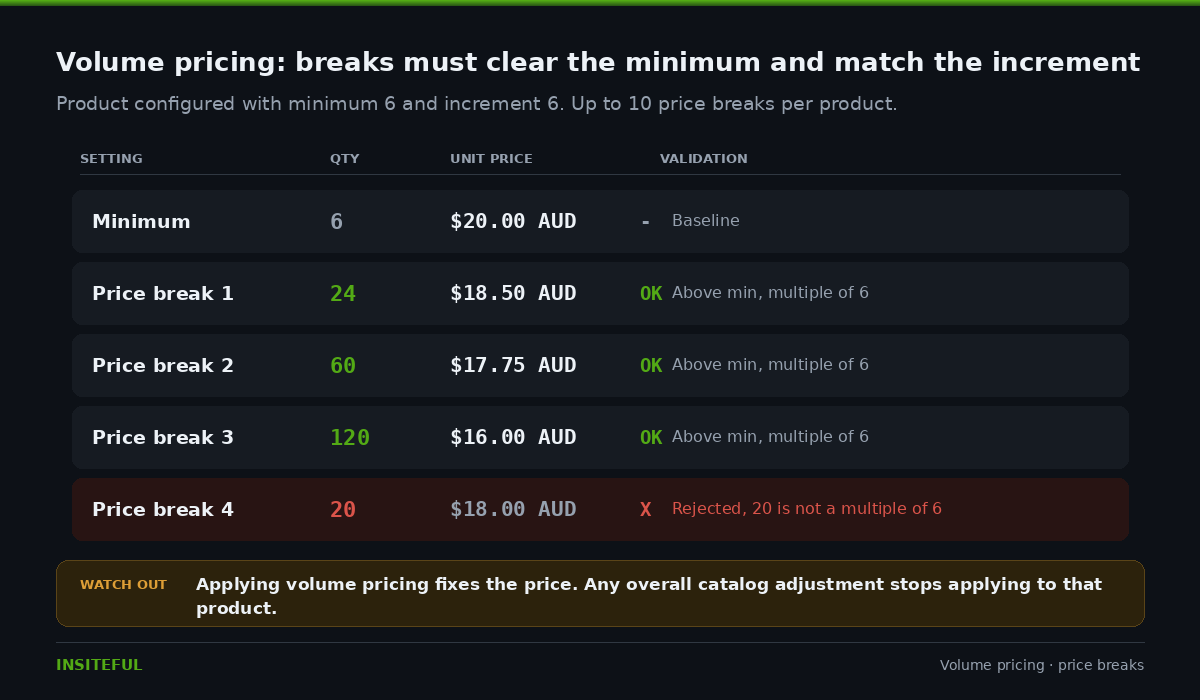
Break quantities must be above the minimum and a multiple of the increment. If you have set a minimum of 6 and an increment of 6, a price break at 20 is invalid. It has to be 12, 24, 60 and so on. Configure the quantity rules first, then the breaks, or you will spend an afternoon wondering why the admin keeps rejecting the numbers.
Volume pricing fixes the price and switches off catalog adjustments. This is the expensive one. If your catalog carries an overall adjustment such as 40% off retail, that adjustment stops applying to any product where you have set volume pricing. The break prices become the price, full stop. We have seen stores where a rep applied volume pricing to a handful of hero lines and inadvertently moved them back to near retail for every wholesale account.
A correctly built ladder for a product with a minimum of 6 and an increment of 6 looks like this.
| Setting | Quantity | Unit price | Valid? |
|---|---|---|---|
| Minimum | 6 | $20.00 AUD | Baseline |
| Price break 1 | 24 | $18.50 AUD | Yes, above min and a multiple of 6 |
| Price break 2 | 60 | $17.75 AUD | Yes |
| Price break 3 | 120 | $16.00 AUD | Yes |
| Price break 4 | 20 | $18.00 AUD | No, not a multiple of 6 |
One further note for anyone still carrying legacy logic: Shopify Scripts reached end of life on 28 August 2025. If your old wholesale discounting ran through Scripts, that logic has to move to Shopify Functions, and the interaction is different. Quantity rules were always applied to line items before Scripts ran, which meant a Script that split or deleted lines could generate a cart with invalid quantities that could not check out. Functions gives you cleaner control, but only if someone actually rewrites the rules rather than porting them literally. We have written about that migration path in our guide to moving from Shopify Scripts to Functions.
Making the Theme Tell the Truth Before Checkout Does
A quantity rule the buyer cannot see is a rule that generates support email. Shopify enforces it at checkout regardless, so the only question is whether the buyer finds out on the product page or three steps into a checkout they have to abandon.
Start with theme version, because this is a hard requirement people miss. Quantity rules for B2B catalogs are supported on free Shopify themes from version 8.0.0 onward, and volume pricing from version 11.0.0 onward. If the store is on an older theme, or a heavily customised one that has drifted from upstream, the display code has to be added by hand.
The minimum viable display lives in main-product.liquid or your equivalent product section.
<div id="QuantityRules-{{ section.id }}"
     data-product-url="{{ product.url }}"
     data-section-id="{{ section.id }}"
     data-variant-id="{{ product.selected_or_first_available_variant.id }}">
  {%- assign rule = product.selected_or_first_available_variant.quantity_rule -%}
  {%- if rule.increment > 1 -%}
    <span>{{ 'products.product.quantity.multiples_of' | t: quantity: rule.increment }}</span>
  {%- endif -%}
  {%- if rule.min > 1 -%}
    <span>{{ 'products.product.quantity.minimum_of' | t: quantity: rule.min }}</span>
  {%- endif -%}
  {%- if rule.max != null -%}
    <span>{{ 'products.product.quantity.maximum_of' | t: quantity: rule.max }}</span>
  {%- endif -%}
</div>
Because the rules are per variant, the block has to re-render whenever the buyer switches variant. The Section Rendering API is the correct tool, and it avoids shipping a JSON blob of every variant’s rules into the page.
async function refreshQuantityRules(productUrl, sectionId, variantId) {
  const res = await fetch(productUrl + '?section_id=' + sectionId + '&variant=' + variantId);
  const html = new DOMParser().parseFromString(await res.text(), 'text/html');
  const current = document.querySelector('#QuantityRules-' + sectionId);
  const updated = html.querySelector('#QuantityRules-' + sectionId);
  if (current && updated) current.innerHTML = updated.innerHTML;
}
Two things we always add on top of Shopify’s baseline snippet, because the baseline displays the rule without enforcing it in the interface:
First, bind the rule to the quantity input itself so the stepper physically cannot produce an invalid number. Setting min, max and step on the input means the browser does the work and the buyer never types 7.
<input type="number"
       name="quantity"
       value="{{ rule.min }}"
       min="{{ rule.min }}"
       step="{{ rule.increment }}"
       {% if rule.max %}max="{{ rule.max }}"{% endif %}>
Second, add the locale strings. If they are missing the storefront renders translation keys instead of sentences, which looks broken and is a five minute fix nobody thinks to check on a store that only shows these strings to logged-in wholesale accounts.
The Gap: Order-Level Minimums Are Not Quantity Rules
Here is the limitation that sends people to the app store when they do not need to go.
Quantity rules are per line item. They cannot express any of the following, which are the three most common commercial requirements a wholesale business actually has:
- A minimum order value, such as $1,500 AUD per order
- A minimum unit count across the whole cart, regardless of which SKUs
- A per-customer or per-location credit limit
These belong to the Cart and Checkout Validation Function API, which is built for precisely this and explicitly supports B2B product minimums, maximums and multiples as well as location-level order minimums, maximums and credit limits. It runs server side, so like quantity rules it cannot be bypassed by manipulating the cart.
The implementation detail that separates a working validation function from a broken one is scoping. If you validate unconditionally, the error fires the moment the cart total sits below the threshold, which is to say the moment the buyer adds their first item. They cannot build a basket. Scope the check to the checkout step using the buyer journey so the cart stays permissive and the gate lands where it belongs.
export function run(input) {
  const MIN_ORDER_CENTS = 150000; // $1,500.00 AUD
  const subtotal = Number(input.cart.cost.subtotalAmount.amount) * 100;

  // Only block at checkout, never while the buyer is building the cart.
  const atCheckout = input.buyerJourney?.step === 'CHECKOUT_INTERACTION';
  if (!atCheckout || subtotal >= MIN_ORDER_CENTS) {
    return { errors: [] };
  }

  return {
    errors: [{
      localizedMessage: 'Wholesale orders have a $1,500 AUD minimum. Add more items to continue.',
      target: '$.cart'
    }]
  };
}
Write the error message as a rep would say it. “Cart validation failed” tells the buyer nothing. Naming the threshold and the remaining gap turns a dead end into an upsell, and it is the difference between a buyer adding another carton and a buyer emailing your sales team.
Catalog Limits That Shape the Architecture
Because quantity rules are properties of a catalog, the number of catalogs you can run is a hard ceiling on how finely you can vary those rules by customer. This is an architecture decision, not a settings decision, and it needs making before anyone touches the admin.
| Constraint | Basic, Grow, Advanced | Shopify Plus |
|---|---|---|
| Active catalogs across all B2B markets | 3 | Unlimited |
| Assign catalog directly to a company location | No, via market only | Yes |
| Catalogs per company location | Up to 25 | Up to 25 |
| Total catalogs per store | 10,000 | 10,000 |
Read that first row carefully against your commercial model. If you are a distributor on Advanced with four customer tiers that each need different case packs, you have three active catalogs and a problem. The usual resolutions are to collapse tiers until the rules genuinely differ, to move the differentiation into pricing rather than quantity rules, or to accept that the tiering requires Plus. We have covered the wider version of this trade-off in our breakdown of B2B on one store versus a separate wholesale store, and how catalogs map to customers in our guide to companies and locations in Shopify B2B.
Rolling Rules Onto a Live Wholesale Store
Quantity rules are revalidated at checkout, which means turning them on can invalidate carts that buyers have already built. On a store with active wholesale accounts that is a real risk, not a theoretical one. This is the sequence we use.
- Export the current catalog to CSV first. It is your rollback and it takes two minutes. Bulk rule changes are far easier to reason about in a spreadsheet than in the admin interface.
- Audit against the packing list, not the price list. Get the actual carton quantities from the warehouse. The numbers in the ERP and the numbers on the pallet disagree more often than anyone expects.
- Set increments before minimums, and minimums before volume pricing. Price breaks have to be multiples of the increment and above the minimum, so any other order means redoing work.
- Ship the theme display in the same release as the rules. Never let a rule go live before the product page can explain it. This is the step most often deferred and it is the one that generates the support load.
- Test with a real company account, not a preview. Quantity rules only apply to B2B catalogs, so they are invisible when you browse as a retail visitor or in theme preview. Log in as a test company assigned to the target catalog.
- Check the variant switch. Load a product where two variants have different rules and confirm the displayed minimum updates when the buyer changes variant. A stale rule shown against the wrong variant is worse than showing none.
- Notify accounts with open carts. A short email beats a buyer discovering at checkout that the order they built last Friday no longer validates.
How We Do It at Insiteful
Quantity rules are never the first thing we configure on a wholesale build, because they are downstream of a decision most stores have not consciously made: what unit are you actually selling?
We start with the warehouse, not the admin. Before anyone opens Markets and Catalogs, we map every SKU to how it is physically picked and shipped, and we get that list confirmed by the person who packs the orders rather than the person who owns the spreadsheet. That single exercise resolves most of the ambiguity, because it forces the answer to the increment-versus-carton-SKU question on a line by line basis instead of as a blanket policy.
From there we build the rules in CSV and import them, never by hand in the admin. Wholesale catalogues run to thousands of lines, hand entry does not survive contact with that scale, and a CSV gives us a reviewable diff when the rules change next quarter. The catalog architecture gets settled at the same time, against the plan limits above, so the tiering model is a deliberate choice rather than something discovered when the fourth catalog will not save.
The theme work ships in the same release as the rules, always. We treat a quantity rule with no storefront display as an unfinished feature, not a phase two, because the entire commercial argument for self-service wholesale is that the buyer does not need to ask anyone. Order-level requirements go into a validation function scoped to the checkout step, with error copy written in the language your reps use rather than developer shorthand.
Then we test it as a buyer. A real company account, a real size run, a deliberately invalid cart, and a variant switch on every product template. Our builds run from $8,500 to $25,000 AUD across a six to eight week engagement, and the QA pass on wholesale ordering rules is a named step in that process rather than something we get to if there is time. We build native Shopify, so all of this uses platform primitives that survive theme updates instead of a stack of apps that each want a monthly fee to do what catalogs already do.
Where to Start
If you are running wholesale on Shopify today, the fastest diagnostic is to log in as one of your own company accounts and try to place the order your best customer places every month. Not a test order. Their actual order, with their actual size run or carton mix.
If you can complete it without a rep, your rules are close to right. If you cannot, or if the product page does not tell you why, the gap between what your warehouse ships and what your store will accept is being absorbed by someone on your team, one phone call at a time.
That gap is measurable, and it is usually the cheapest thing to fix on a wholesale store. If you want a second set of eyes on how your catalogs, quantity rules and validation logic fit together, take a look at how we run a build assessment. We will tell you whether this is a configuration job or an architecture one before anyone quotes you for a build.