
Every customised Shopify store hits the same moment eventually. The theme vendor ships version 3.2, the changelog promises a faster product page and a fix for the cart drawer bug that has annoyed you for months, and the update button sits there in the admin, daring you to press it. You know what happens if it goes wrong. The custom size guide your last developer built disappears. The trade pricing snippet stops rendering. The homepage you spent a weekend arranging reverts to the demo layout, and you spend the next three days rebuilding it from screenshots.
So most merchants do nothing. We audit a lot of Australian Shopify stores, and it is common to find themes three or four major versions behind, sometimes years old, still running because nobody was confident the update would survive contact with the customisations. That caution is understandable and expensive at the same time. Old theme versions miss performance improvements, accessibility fixes, and new native features that would otherwise replace paid apps. One retailer we assessed was paying roughly $3,600 AUD a year across two apps that did nothing their theme’s current version did not already do natively.
The good news: updating a customised theme without losing your work is a solved problem. It just requires knowing exactly where each type of customisation lives, which update path fits your situation, and a workflow that makes the whole thing boring instead of terrifying. This guide covers all three.
Why Theme Updates Break Customised Stores
A Shopify theme update is not a patch applied over your existing theme. It is a fresh copy of the theme’s code added to your store as a new draft, with Shopify attempting to carry your configuration across. Understanding that one fact explains almost every update horror story you have heard.
When the vendor releases a new version, Shopify pulls the new code files and then copies over the customisations you made through the theme editor: settings, section arrangements, blocks, templates, and app embeds. Anything you changed through the editor UI travels with you. Anything that was done by editing the theme’s code directly is at the mercy of a conflict check: Shopify’s documentation confirms that if your code edits do not conflict with the update, they are included, and if they do conflict, they are silently left behind, with a note on the theme card telling you after the fact.
That conflict check is the roulette wheel. A code edit to a file the vendor did not touch usually survives. An edit to a file the vendor rewrote gets dropped. And because vendors rewrite core files in most major releases, the more heavily customised your theme is at the code level, the more likely an update is to shed your work.
The practical takeaway for any store owner: the risk of a theme update is not random. It is a direct function of how your customisations were built. Which brings us to the three layers.
The Three Layers of Customisation (and Where Each One Lives)
Every customisation on a Shopify store lives in one of three layers, and each layer behaves differently during an update.
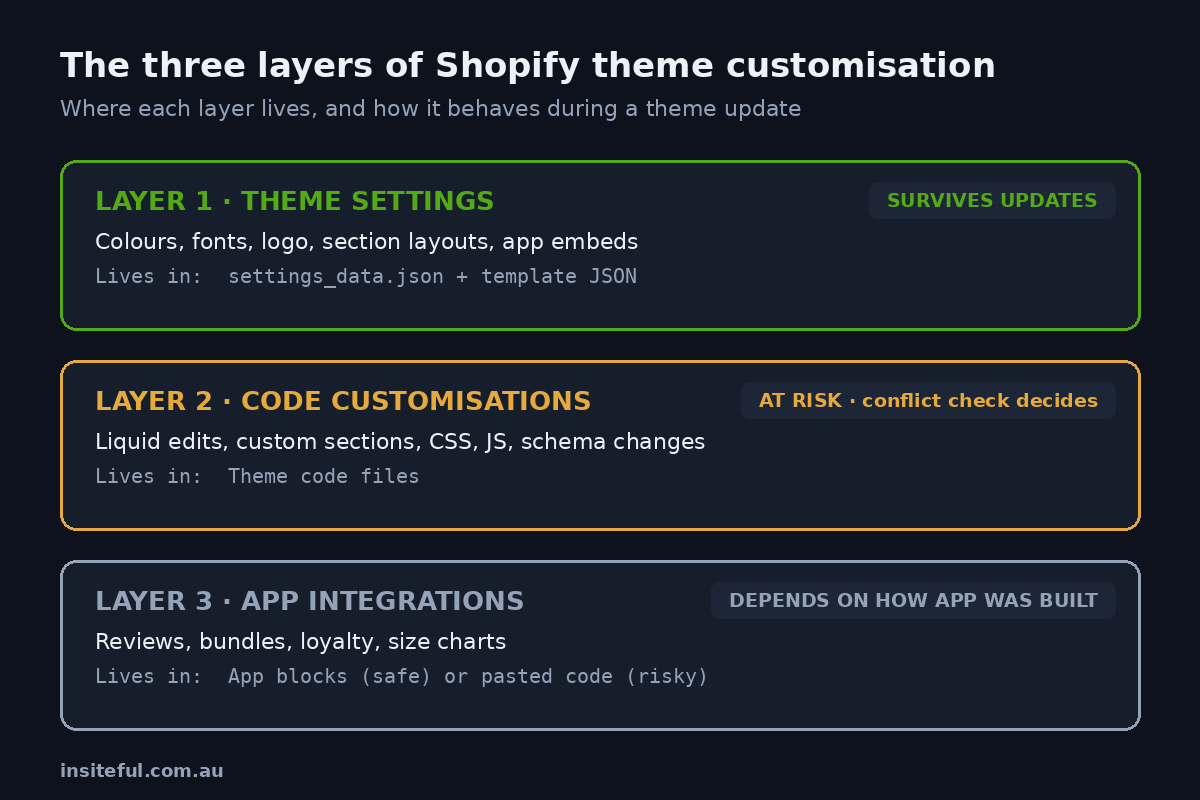
Layer 1: theme settings. Colours, fonts, logo, section content, homepage arrangement, template assignments, metafield bindings. These are stored as JSON configuration, primarily in settings_data.json and your template JSON files, not in the theme’s code. This layer is what the theme editor writes to, and it is the layer Shopify carries across automatically during a same-theme update.
Layer 2: code customisations. Direct edits to Liquid files, custom sections and snippets added to the theme, CSS dropped into assets, JavaScript tweaks, schema modifications. These live in the theme’s files themselves. This is the fragile layer, because an update replaces the code files wholesale and only preserves edits that pass the conflict check.
Layer 3: app integrations. Reviews widgets, bundles, loyalty pop-ups, size charts. Modern apps integrate as app blocks or app embeds, which are referenced in your settings layer and survive updates cleanly. Older apps, and some lazily built current ones, work by pasting code snippets directly into your theme files, which puts them in Layer 2 with all its fragility.
Here is the quick self-audit we run with clients. Open your theme’s edit-code view and look at the file list. A stock theme has a predictable structure. If you see files like custom-hero.liquid, snippets/trade-pricing.liquid, or a custom.css in assets, you have Layer 2 customisations. If you see review app code pasted inside main-product.liquid rather than an app block in the editor, you have Layer 3 integrations living in Layer 2. Count them. That count determines your update path.
One reassurance before we go further: your actual store data is never at risk. Products, collections, customers, orders, metafields, and blog posts all live at the Shopify platform level, completely outside the theme. The worst possible theme update cannot touch them. What is at risk is presentation and behaviour, not data.
What Survives an Update and What Gets Replaced
Pin this table somewhere. It is the single most useful reference in the entire update conversation.
| Asset | Where it lives | Survives a theme update? |
|---|---|---|
| Products, orders, customers, metafields | Shopify platform | Always. Not part of the theme. |
| Theme editor settings (colours, fonts, logo) | settings_data.json | Yes, copied to the updated theme. |
| Homepage and template section layouts | Template JSON files | Yes, for same-theme updates. |
| App blocks and app embeds | Settings layer references | Yes, reconnect automatically. |
| Custom sections and snippets you added | Theme code files | Usually, if filenames do not clash with new vendor files. |
| Edits inside vendor code files | Theme code files | Only if no conflict. Silently dropped otherwise. |
| App code pasted into theme files | Theme code files | Same conflict rules. Frequently lost. |
The pattern is obvious once you see it laid out: everything referenced by configuration survives, everything living inside vendor-owned code files is at risk. That single insight drives both the safe update workflow and, more importantly, the way customisations should be built in the first place.
The Four Update Paths (and How to Pick the Right One)
There are four legitimate ways to get a customised theme onto a newer version. Each fits a different situation.
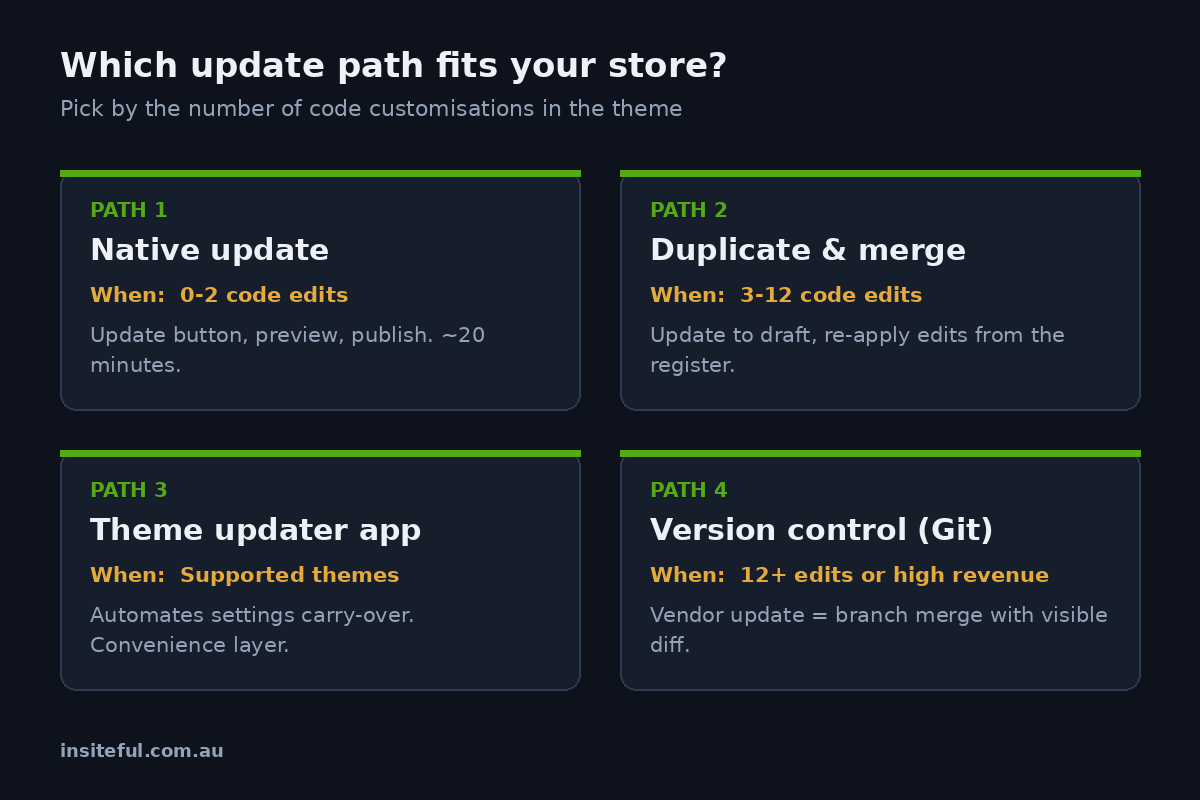
Path 1: the native update, for lightly customised stores. If your customisations are all Layer 1 and Layer 3 app blocks, with zero or minimal code edits, Shopify’s built-in update flow is genuinely fine. The updated theme arrives as a draft, your settings carry across, and the theme card tells you whether any code edits made it. Preview, click through your key templates, publish. Twenty minutes, low risk.
Path 2: duplicate-and-merge, for moderately customised stores. When you have a handful of known code customisations, the reliable approach is to let the update create its draft, then manually re-apply each customisation to the new version. This is where a customisation register earns its keep: a simple document listing every code change, which file it touches, and why it exists. With a register, re-applying five customisations is an hour of careful work. Without one, it is archaeology, diffing old theme against new to rediscover what your previous developer did in 2023.
Path 3: a theme updater app, for popular third-party themes. Several vendors support updater apps that automate carrying settings and flagging code differences between versions. These work well for the specific themes they support and poorly as a general solution. Treat them as a convenience on top of the workflow below, not a replacement for it.
Path 4: version control, for seriously customised stores. If your theme has more than a dozen code customisations, or an in-house team touching it regularly, updates should not happen through the admin at all. Shopify’s GitHub integration syncs your theme to a repository in both directions: changes merged to the connected branch deploy to the store, and changes made in the admin commit back to the branch. Vendor updates become a branch merge with a visible diff, and every conflict is resolved deliberately by a human instead of silently by Shopify’s conflict check. More on this setup below.
A rough rule of thumb we give clients: zero to two code edits, Path 1. Three to twelve, Path 2. A supported theme with modest edits and no developer on hand, Path 3. Anything beyond that, or any store where downtime costs real money, Path 4. A store doing $2M AUD a year has no business updating its theme through a one-click button and hoping.
The Pre-Update Safety Workflow We Run Every Time
Whatever path applies, the same safety workflow wraps around it. This is the exact sequence, in order.
1. Duplicate the live theme. In the admin, Online Store, Themes, then Duplicate on the live theme’s menu. Name it with the date and version, for example Live backup 2026-07-17 v3.1. This is your instant rollback. Shopify keeps up to 20 themes in your library, so there is no excuse to skip it.
2. Pull a local copy as well. A duplicate inside Shopify is good; a copy outside Shopify is better. With Shopify CLI installed, one command archives the entire theme to your machine:
shopify theme pull --store=your-store.myshopify.com --theme=THEME_ID --path=./backups/2026-07-17-v3.13. Write or update the customisation register. Every known code edit, one line each: file, what it does, who built it. If you do not have one, build it now by comparing your theme against a clean copy of the same version. Tedious once, invaluable forever.
4. Run the update into a draft. Never onto the live theme. Check the theme card message about code edits: it will state whether your edits were included or left out.
5. Test against a fixed checklist, in preview. Not a vibe check. A written list: homepage renders with your layout, product page shows custom elements, cart drawer functions, checkout reachable, size guide opens, trade pricing displays for a logged-in wholesale account, reviews render, announcement bar correct, mobile menu works, page speed comparable. Ten minutes with a checklist beats three hours of customer complaints.
6. Publish at low traffic, then re-test live. For most Australian retailers that means early morning AEST, never during a sale window, and never on a Friday afternoon before you leave for the weekend. Re-run the same checklist on the live site, because a handful of things (some app embeds, some third-party scripts) only behave fully on the published theme.
7. Keep the backup for a fortnight. Some breakage only surfaces when a customer with a specific device or account state hits a specific template. Two weeks of live traffic is the real test pass.
Making Code Customisations Update-Proof
The workflow above manages risk. This section removes it at the source, because the deeper fix is building customisations so updates cannot destroy them.
Rule 1: never edit vendor files when you can add your own. A customisation in its own file, with its own name, cannot conflict with a vendor rewrite. Need a custom hero? Build sections/custom-hero.liquid rather than reworking the vendor’s hero section. Need CSS overrides? One assets/custom.css loaded from the layout, not edits scattered through the vendor’s stylesheets.
Rule 2: when you must touch a vendor file, make the touch tiny. The pattern that survives is a single render call added to the vendor file, with all the real logic in your own snippet:
{% comment %} INSITEFUL CUSTOM: trade pricing, see register entry 7 {% endcomment %}
{% render 'trade-pricing', product: product, customer: customer %}
If an update drops that one line, re-adding it takes thirty seconds, because the snippet itself, living in its own file, came through untouched. Compare that with fifty lines of pricing logic woven through the vendor’s product template, which an update erases completely.
Rule 3: prefer app blocks over pasted app code, always. When installing any app that touches the storefront, check whether it offers an app block or app embed in the theme editor before accepting its offer to inject code. App blocks are referenced from the settings layer and reconnect automatically after updates. Pasted code is a Layer 2 liability. If an app only supports code injection, that is a mark against the app in selection.
Rule 4: mark every customisation with a comment. A consistent marker like INSITEFUL CUSTOM at every touch point means a single search of the theme code lists every modification. Your customisation register practically writes itself, and any developer who inherits the store can map the custom surface in minutes.
Stores built this way update in under an hour, routinely. Stores built the other way generate quotes for remediation. We recently scoped one where undoing years of tangled in-file customisation and rebuilding it cleanly came to $14,500 AUD, most of which would have been avoided if the original work had followed these four rules.
When the Update Is Really a Migration: Horizon
One special case deserves its own section, because plenty of store owners currently staring at an update prompt are actually staring at a platform shift. Shopify’s Horizon theme, launched in mid-2025, is now the default for new stores, and per Store Leads tracking it already powers around 6.2% of Shopify stores, against 9.4% still on Dawn and 16.4% on the long-tail Trademark family.
Horizon is not a bigger Dawn. Its architecture supports nested theme blocks up to eight levels deep, where Online Store 2.0 themes topped out at two, and its front end is built on web components with AI-assisted block generation in the editor. That flexibility is real, and so is the consequence: there is no automatic translation from a Dawn-generation theme to Horizon. Your settings layer describes sections and blocks that do not exist in Horizon’s model, so a move to Horizon is a rebuild of your templates in the new block system, not an update.
The honest framing for a merchant: moving to Horizon is a redesign project with a proper scope, timeline, and budget, and it is worth evaluating on those terms rather than sneaking it in as a maintenance task. For a customised store, treat it exactly as you would treat a replatform: audit what you have, decide what earns its place in the new build, and rebuild custom features as tidy Horizon blocks rather than porting old Liquid across. Done properly it is also the moment to shed years of accumulated app weight and code debt in one pass.
If your theme vendor has shipped a Horizon-generation successor to your current theme, the same logic applies at smaller scale. Check whether the vendor offers a settings migration tool before assuming anything carries over.
Put the Theme Under Version Control and Stop Worrying
For stores past a certain customisation threshold, the permanent fix is moving theme management into Git. The setup is straightforward and, per Shopify’s own best-practice guidance, it is how serious theme work is expected to run.
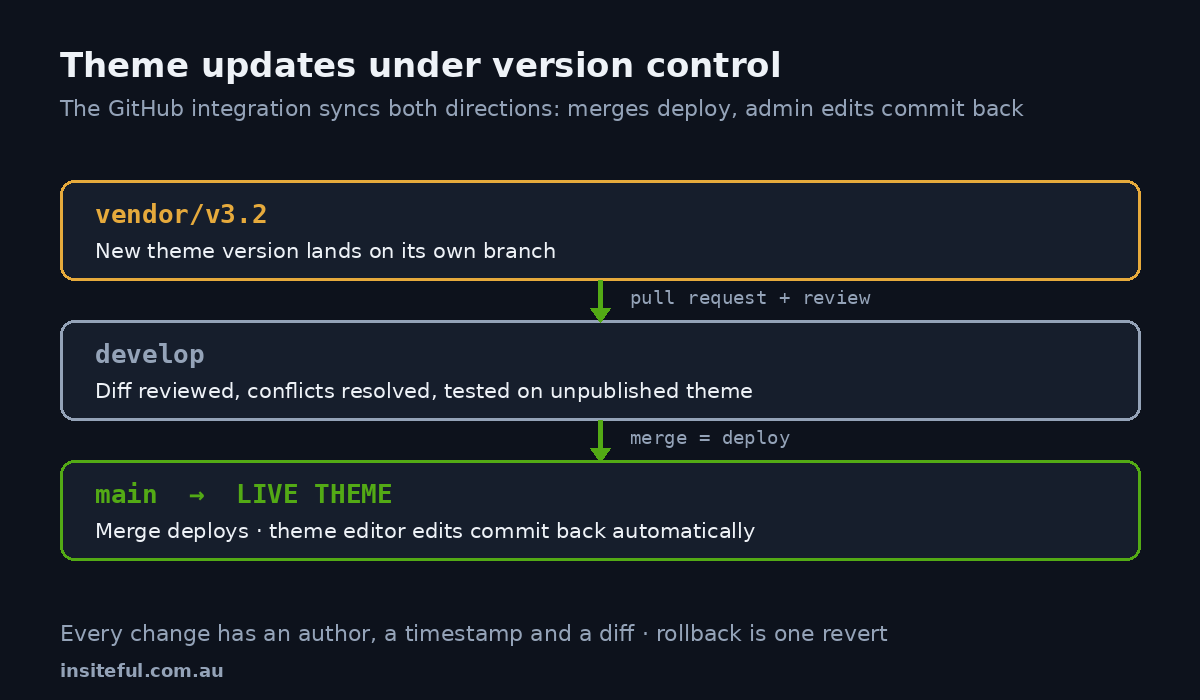
The shape of the setup: your theme lives in a GitHub repository. The main branch connects to your live theme through Shopify’s GitHub integration, so merges to main deploy to the storefront, and any changes made through the admin (a merchandiser tweaking the homepage in the theme editor, for instance) commit straight back to the branch. Nothing is lost in either direction, and every change has an author, a timestamp, and a diff.
Day-to-day work happens on a development branch connected to an unpublished theme, so changes are visible in a real store preview before they go anywhere near production. A vendor theme update becomes a routine operation: the new version comes in on its own branch, Git shows precisely which files changed and where they collide with your customisations, and each conflict gets resolved by a person who understands both sides. The silent-conflict roulette of the admin update flow is gone entirely.
# One-time: connect the repo, then day-to-day work looks like this
git checkout -b feature/new-size-guide
shopify theme dev --store=your-store.myshopify.com   # live-reload local development
git commit -am "Add size guide section"
git push origin feature/new-size-guide
# PR review, merge to develop for staging, merge to main to deploy
The overhead is modest: a repository, a branching habit, and a developer comfortable with the workflow. Against that, updates stop being feared events, every experiment is reversible, and no future developer ever has to reverse-engineer the store again. With around 152,000 active Shopify stores in Australia and roughly 3,650 of them on Plus, per Eightx’s 2026 Australian market report, the local stores competing at the top are overwhelmingly the ones treating their theme as managed software rather than a thing nobody dares touch.
How We Do It at Insiteful
Theme updates are a routine part of the care plans we run for Australian Shopify stores, and the process reflects everything above because we learned the same lessons the hard way over 25 years of building for the web.
Every build we ship leaves the vendor’s files as close to untouched as the design allows. Custom functionality lives in its own sections and snippets, marked and registered, wired into vendor templates through single-line render calls. Storefront apps are selected partly on whether they integrate as app blocks; we treat code-injection apps as a red flag at selection time. Client themes sit in Git from day one, with the GitHub integration connected, so the theme editor stays fully usable for the client’s team while every change lands in history.
When a vendor update ships, the sequence is: changelog review to decide whether the update earns its place at all, update branch, diff review against the customisation register, conflict resolution, checklist test on a preview theme against our standard template matrix, low-traffic publish, and a live re-test. For a store on our standard architecture that is typically under two hours of work, billed inside the care plan rather than as a surprise. For stores arriving with tangled themes, we usually recommend a one-off remediation pass first, because paying once to untangle beats paying a little every single update, forever.
And when a client asks about Horizon, we scope it as what it is: a rebuild with a real budget conversation, not a checkbox. Sometimes the answer is “not yet, the current theme has years left”. That is fine too. The point of the process is that the decision gets made deliberately, with the store’s revenue protected the whole way through.
Update With Confidence, Not Crossed Fingers
If your theme is versions behind because nobody is sure what will break, that uncertainty is itself the problem, and it is fixable. Book a build assessment through our process page and we will map your theme’s customisation surface, tell you exactly what an update would cost you today, and give you a plan to make the next one boring.